

TL;DR:
- Change your renderer to Mercury Playback Engine Software Only in Project Settings > General—this fixes the white screen in most cases
- Your playback will be slower but at least you can see what you’re editing (you can switch back later)
- This is project-specific, so you’ll need to change it for each project file where the issue pops up
- The root cause is usually a GPU acceleration conflict, not corrupted footage or a pirated version issue
You’re in the middle of editing when Premiere Pro decides to show you a lovely white static screen instead of your footage. Sometimes you scrub the timeline and catch glimpses of your video, then—nope, it’s gone again. Just white noise like a TV from 1987. 👋
Here’s the actual fix that works right now, not the “have you tried turning it off and on again” nonsense you’ll find in Adobe’s support forums.
And yeah, I’m linking you to the best laptops for video editing because if this keeps happening, your GPU might be telling you something.
Thumbnail showing the Premiere Pro white screen glitch and switching renderer to Software Only.
The 60-Second Fix (Just Do This First)
Don’t go to Edit > Preferences. That’s the wrong menu and I’m saving you the wasted click.
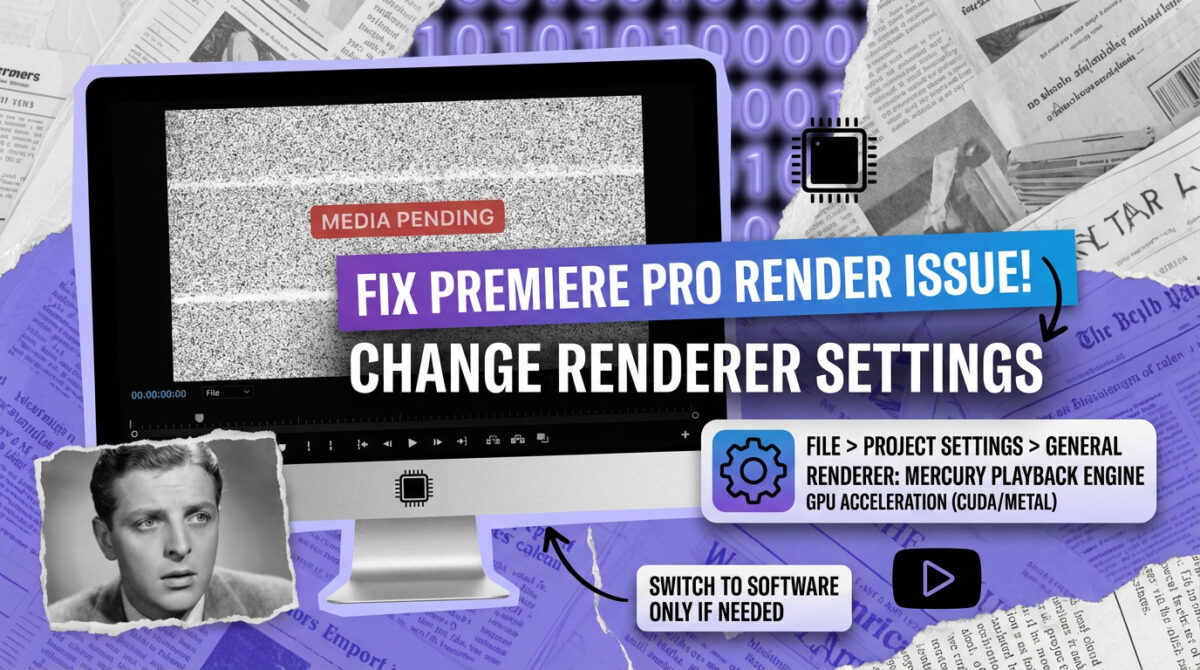
- Go to File in the top menu
- Click Project Settings
- Click General
- Find the Renderer dropdown (it’s probably set to “Mercury Playback Engine GPU Acceleration” with Metal, CUDA, or OpenCL after it)
- Change it to Mercury Playback Engine Software Only
- Click OK
Your white screen should disappear immediately. If it doesn’t, you’ve got a different problem entirely—but for most people reading this, you just fixed it and can get back to editing.

Fun fact
The Mercury Playback Engine was introduced way back in Premiere Pro CS5 in 2010, and we’ve been dealing with GPU-related bugs ever since. Technology!
What You Just Did (And Why It Worked)
When Premiere uses GPU acceleration, it’s asking your graphics card to handle the heavy lifting of rendering your timeline in real-time. That’s normally a good thing—GPU rendering can be way faster than software-only mode for effects and playback.
But sometimes your GPU and Premiere get into a fight about how to display things. Could be outdated drivers, your GPU model doesn’t play nice with the current version, it’s overheating, or you’re working with a codec that doesn’t mesh well with GPU acceleration.
By switching to Software Only, you’re telling Premiere: “Forget the graphics card, just use the CPU for everything.” It’s slower and less efficient, but it works—crucial when you’ve got a deadline and a client waiting.
Did you know?
Some users with AMD GPUs report white screen issues more than NVIDIA users, and certain MacBook Pro models from 2016–2019 can be particularly prone to it when using Metal acceleration. If you’re on one of those systems, Software Only mode might become your permanent friend.
The Trade-Off You Just Made (Be Honest With Yourself)
You fixed the white screen. Great. But you also just made your editing experience noticeably worse in other ways.
Here’s what Software Only mode means:
- Scrubbing through your timeline is now laggier—especially on complex projects with lots of effects
- Real-time playback of effects like Lumetri Color adjustments basically doesn’t exist anymore
- Export times can increase depending on your project complexity and CPU
- RAM usage can increase because your CPU is now doing everything
- 4K projects on older CPUs might become borderline unworkable
If you’re editing simple 1080p sequences with minimal effects, you might not notice much difference. If you’re doing color grading on 4K footage with multiple adjustment layers… yeah, you’re gonna feel it.
Software Only mode isn’t a long-term solution; it’s a diagnostic tool as much as a fix—it tells you there’s a GPU-related problem that needs addressing.
Why This Happens (The Actual Causes)
Based on reports from Reddit’s r/premiere, Adobe Community Forums, and years of frustrated editors, here are the real culprits behind the white screen:
- Outdated or incompatible GPU drivers – Windows updates can install generic drivers that work for web browsing but make Premiere unstable.
- GPU overheating or failing – If your card is thermal throttling or degrading, GPU acceleration is often the first thing to act weird.
- Codec compatibility issues – Certain H.264/H.265 variants don’t always play nice with GPU decoding in Premiere.
- Insufficient VRAM – A 2GB VRAM GPU with 4K footage is a recipe for problems; the white screen is it giving up.
- Conflicting third-party GPU utilities – Overclocking/monitoring tools like MSI Afterburner or EVGA Precision can interfere with Premiere.

Caution
If switching to Software Only mode doesn’t fix your white screen, you’re dealing with something else entirely—possibly corrupted media cache, a dying hard drive, or RAM issues. Start with clearing your media cache (Edit > Preferences > Media Cache > Delete) before panicking.
The Permanent Fix (What You Should Do)
- Update your GPU drivers properly — go directly to NVIDIA, AMD, or Intel and install the latest Studio drivers.
- Roll back drivers if you just updated — if the issue started after an update, revert via Device Manager.
- Check your GPU temperatures — monitor with HWMonitor; consistent 85°C+ suggests throttling or cooling issues.
- Increase RAM allocation to Premiere — Edit > Preferences > Memory; give Premiere at least 50% of available RAM.
- Try a different GPU acceleration option — if you can choose CUDA vs. OpenCL vs. Metal, test the alternatives.
Quick Troubleshooting Steps
- Clear media cache and media cache database
- Reduce playback resolution to 1/2 or 1/4 in the Program Monitor
- Update Premiere Pro to the latest version
- Disable GPU-accelerated effects individually to isolate the problem
- Test with a brand new empty project to rule out project file corruption
When Software Only Mode Is Fine
Not everyone needs GPU acceleration. If you’re in any of these situations, Software Only mode is a perfectly reasonable permanent solution:
- Editing simple interviews or vlogs with minimal effects
- You’ve got a strong CPU (recent i9/Ryzen 9) but a mediocre GPU
- You’re on a laptop and GPU acceleration makes your fans sound like a jet engine
- Your GPU is old enough that drivers no longer receive updates
The performance hit matters far less if you’re not pushing complex timelines. And honestly, stable playback at 80% speed beats glitchy playback at 100% speed every single time.
This Is a Project-Specific Setting (Don’t Forget)
Here’s the annoying part: this renderer setting applies only to the project you changed it in. If you open a different project tomorrow and see the white screen again, you’ll need to change the setting again in that project.
There’s no global “use Software Only for everything” setting in Premiere’s preferences. Adobe wants you to use GPU acceleration because it’s genuinely better when it works, so they make you choose on a per-project basis. If you’re changing this constantly, that’s your computer screaming to fix the underlying GPU issue.

Frequently asked questions (FAQ)
No. The renderer only affects real-time timeline processing and display; it has zero impact on final export quality. Your export settings determine the final result—even a pristine 4K ProRes file is fine from a Software Only edit.
Absolutely. Switching back can speed up exports—just change the renderer back before you render. If the white screen returns, switch to Software Only again.
Different projects use different codecs, resolutions, and effects. A simple 1080p timeline may be fine on GPU acceleration, while a 4K project with Lumetri and multiple adjustment layers can push your GPU past its limits—or one odd codec may break GPU decoding.
Likely related. Flickering white frames often point to a similar GPU conflict, and switching to Software Only usually fixes it. If flashing happens at the exact same timecode every time, investigate a corrupted clip or problematic effect.
Not necessarily. If Software Only fixes it and driver updates don’t let you return to GPU acceleration, your GPU may be underpowered or failing. Desktop users can replace it; laptop users may need to plan for a new editing machine.
Clear your media cache (Edit > Preferences > Media Cache > Delete). If that fails, create a brand new project and import your footage. If the issue follows the media, it’s likely corrupted clips; if it stays in the old project, the project file may be damaged. As a last resort, run a RAM test (Windows Memory Diagnostic).
Final Thoughts
The white screen of death is Premiere’s way of saying “my GPU and I are having a disagreement.” Switching to Software Only mode is like sending them to separate corners—it works, but you lose the benefits of teamwork.
Fix it now so you can finish your edit, then address the root cause: update drivers, check temps, and consider hardware upgrades if your system is aging. Software Only gets you back to work, but GPU acceleration is genuinely better when it behaves.
If you’re constantly fighting this battle, it may be time to invest in a setup built for professional video editing. Your time is worth more than babysitting renderer settings.