
TL;DR:
- Play YouTube normally, then open TikTok and scroll to any video before locking your screen
- The audio continues playing because iOS maintains the YouTube audio session when TikTok takes over media controls
- This works on iPhone but reliability varies—it’s an exploit not a feature
- Browser methods are more reliable if this doesn’t work for you
So you want to listen to YouTube with your phone locked but refuse to pay $14/month for Premium? I get why that stings. Background playback used to be free until YouTube locked it behind a paywall in 2015, and yeah that still pisses people off.
Most solutions you’ll find are either sketchy third-party apps that could get you banned or browser hacks that stopped working three updates ago; this TikTok workaround actually works using apps you already have installed.
Here’s the deal: this method exploits how iOS handles audio between apps, and while it works right now there’s no guarantee it’ll survive the next update; for now it’s your best free option that doesn’t involve shady APKs or keeping your screen on all day.
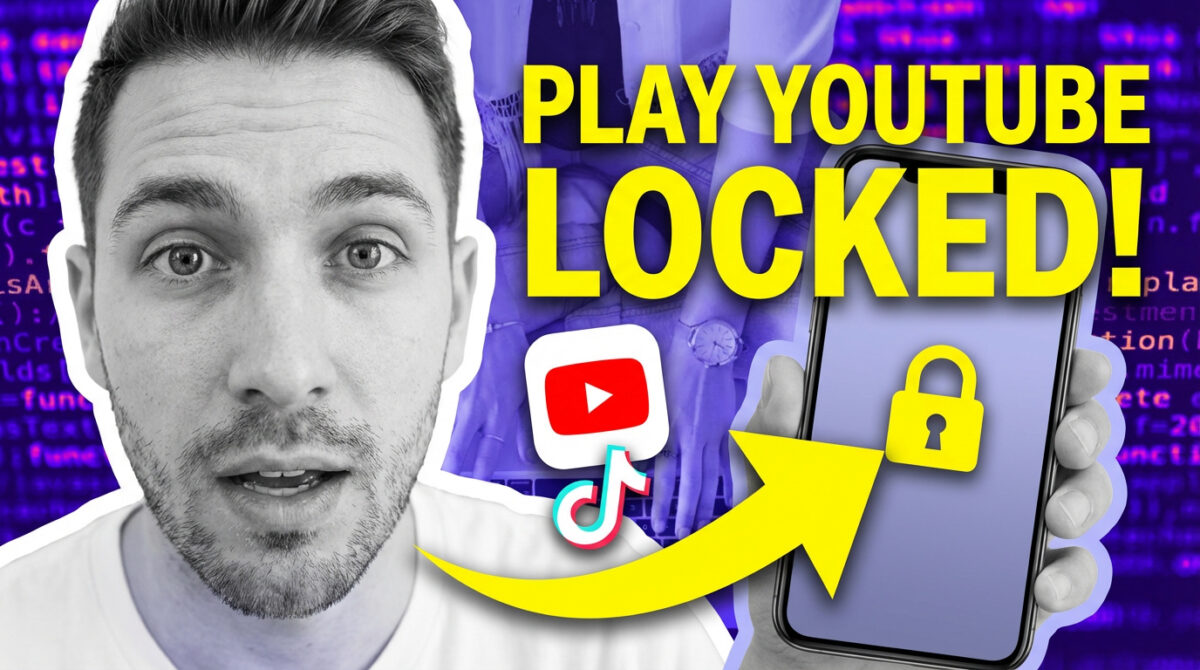
Quick hack to play YouTube audio with the phone locked, demo style thumbnail
Why Background Playback Even Matters
YouTube killed free background playback when they launched YouTube Red (now Premium) back in 2015; before that you could minimize the app and keep listening like a normal media player.
The removal was strategic: Premium has topped 100 million subscribers and background playback is the feature that drives a huge chunk of those sign-ups.
Most people don’t need YouTube Music, ad-free viewing, or offline downloads—they just want to lock their phone while listening, and charging $14 for that one feature feels excessive, which is why workarounds keep popping up.
Over 2.7 billion people use YouTube monthly but only a small percentage pays for Premium; the vast majority are stuck with ads and no background play.
The TikTok Workaround Method (Step-by-Step)
Step 1: Start Your YouTube Video
Open YouTube, find the video you want, hit play, and let it actually start playing—don’t just load the page because the video needs to be actively running.
Step 2: Switch to TikTok
While YouTube is still playing, swipe up to exit and open TikTok—move quickly between apps so iOS keeps the audio session alive.
Step 3: Scroll to Any TikTok Video
Start playing literally any TikTok video to trigger its media player—you’re just grabbing media control, not actually watching the TikTok.
Step 4: Lock Your Phone
Now lock your screen; the YouTube audio should keep playing and you can control it from the lock screen—pause, play, and skip with standard iOS media controls.

Warning
Timing matters here: If you wait too long between steps or switch apps in the wrong order, it won’t work. Flow through the sequence in order—YouTube plays → TikTok opens → TikTok video plays → lock screen—and don’t overthink it.
Why This Method Actually Works
This isn’t magic—it’s exploiting how iOS manages background audio sessions and lock-screen controls; apps register for media sessions that iOS can hand off or keep alive temporarily.
TikTok has full background playback permissions and when you switch from YouTube to TikTok, iOS doesn’t immediately kill YouTube—it keeps the session alive briefly.
During that overlap, locking the screen can freeze TikTok before it fully overrides YouTube, so the YouTube audio keeps going even though TikTok had taken control.
It’s unintended behavior, not a feature, which is why reliability varies by app and iOS versions and any update could break it.

Did You Know?
If this stops working after an update, you didn’t do anything wrong—it likely changed in iOS or the apps. Keep the browser method (desktop site or Brave) as a reliable fallback.
What to Expect (The Honest Reality Check)
Despite viral claims, this does not work 100% of the time; it works for many people but it’s temperamental and can break after updates.
What to Expect
What Actually Works
- Playing YouTube audio with screen locked
- Basic playback controls from lock screen
- No need for sketchy apps or modified clients
- Uses apps you already have
What’s Frustrating
- Requires the exact sequence every time
- Breaks randomly after app updates
- Doesn’t work on all iOS versions
- Can stop mid-session for no clear reason
Better Alternatives If This Doesn’t Work
Browser Method (Most Reliable)
Open YouTube in Safari or Chrome, request the desktop site, start your video, then lock your screen—desktop YouTube isn’t bound by the same mobile limits, though the interface is clunkier.
Brave Browser (Built-In Feature)
The Brave browser supports background audio out of the box: open YouTube in Brave and it just works, no weird workarounds needed.
YouTube Music Free Tier
If you only need music, the free YouTube Music tier allows background play for music content (but not for podcasts or video essays).
Picture-in-Picture (Android)
- Keeps video visible in a small window
- Not true background playback but usable while multitasking
- Native Android feature—no workarounds required

Critical Warning
Avoid modified YouTube clients (like the now-discontinued Vanced) and shady APKs—they risk account flags and security issues, and they get shut down frequently.
The ‘Just Pay for Premium’ Argument
I’m not here to sell you Premium, but $14/month buys background play, no ads, Music, and offline—for heavy users, the time saved may be worth it.
If you use YouTube daily for podcasts, music, or video essays, saving 30+ minutes a month not fiddling with workarounds can be meaningful.
But if you only occasionally listen with the screen off, these free methods make more sense than a permanent subscription.
The real question isn’t whether Premium is ‘worth it’ in some abstract sense—it’s whether you will actually use enough of the features to justify $168 yearly. For most people the answer is no.
YouTube knows this, which is why the free experience keeps getting worse—more ads, longer ads, and restrictions designed to push you toward paying.
Common Issues and Quick Fixes
Audio Cuts Out After a Few Minutes
This usually means iOS killed the YouTube session in the background; run the TikTok sequence again and if it keeps happening, use the browser method instead.
Lock Screen Controls Don’t Appear
You might have locked too quickly before TikTok registered as the active media app—redo the sequence and wait a beat before locking.
Method Worked Yesterday, Doesn’t Work Today
Likely an app update changed media session handling; check recent updates and community reports, but beware that downgrading apps introduces other risks.
Works on Wi‑Fi, Not on Cellular
Some iOS versions are more aggressive about background tasks on cellular—there’s no reliable fix beyond using Wi‑Fi or switching to the browser method.
FAQ
Frequently Asked Questions
Inconsistently. Android handles sessions differently and this specific TikTok trick works better on iPhone. Try the desktop site in a browser or Brave for more reliable results.
No. You’re using two legitimate apps in a particular sequence—you’re not modifying YouTube or violating ToS. Avoid modified clients, though.
Pricing varies by country and people do use VPNs, but Google is cracking down and subscriptions can be canceled if detected. Weigh the risk.
Use YouTube Music’s free tier—it supports background audio for music, but not for podcasts or general YouTube videos.
No one knows—it could break after any update to YouTube, TikTok, or iOS. Treat it as a temporary workaround.
Keep apps and iOS updated, execute the steps smoothly, and use the browser fallback when you need consistency. Otherwise, consider Premium.