Troubleshooting PyCharm Issues: A Simple Solution

I recently encountered an issue with PyCharm that was driving me crazy, and I wanted to share the solution I found in hopes it helps someone else out there.

Spread the love
Bikers rights gif via giphy
"bikers rights" portlandia gif via giphy

Hey everyone, how’s it going? I recently encountered an issue with PyCharm that was driving me crazy, and I wanted to share the solution I found in hopes it helps someone else out there.

The Issue with PyCharm

While working with PyCharm, I ran into a persistent problem that I couldn’t seem to fix. After searching online for a solution, I found a recommendation to delete a particular folder. However, this method had its drawbacks, which I’ll explain below.

Fix pycharm error
Fix pycharm error

Finding the Hidden Folder

The folder in question is an invisible file, so you might not see it if you look for it directly. Here’s how you can find it:

  1. Open Finder (for macOS users).
  2. Click “Go” in the menu bar.
  3. Select “Go to Folder…”
  4. Type in the following path and press Enter:javascriptCopy code~/Library/Application Support/JetBrains
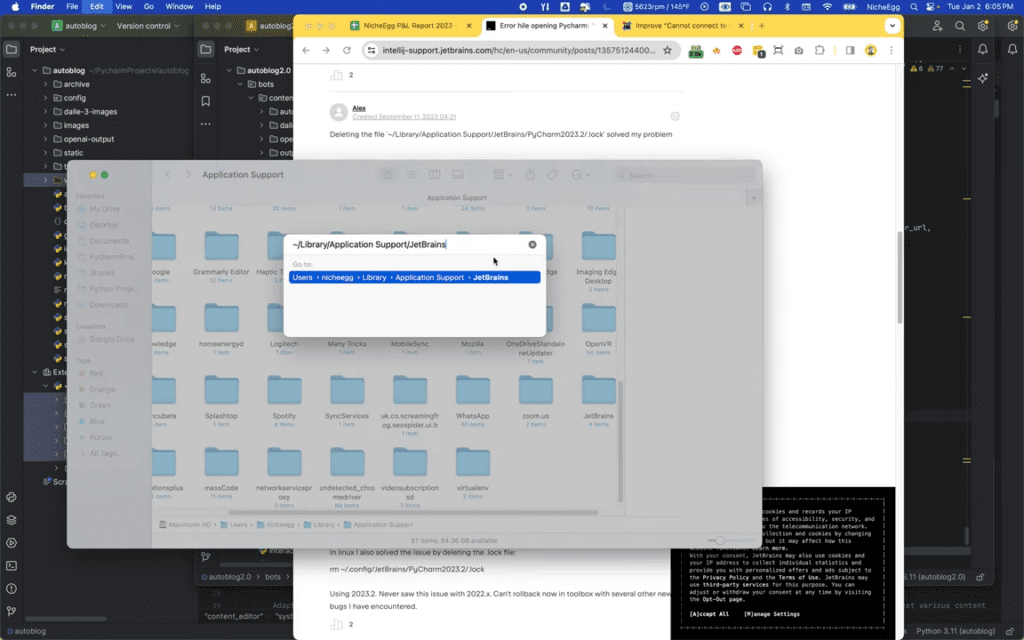
Fix pycharm error cannot connect to already running ide instance process is still running 0 43 screenshot

Deleting or Renaming the Folder

The forum I found suggested deleting the entire JetBrains folder, but doing so will erase all your PyCharm settings, projects, and presets. Instead, here’s a safer approach:

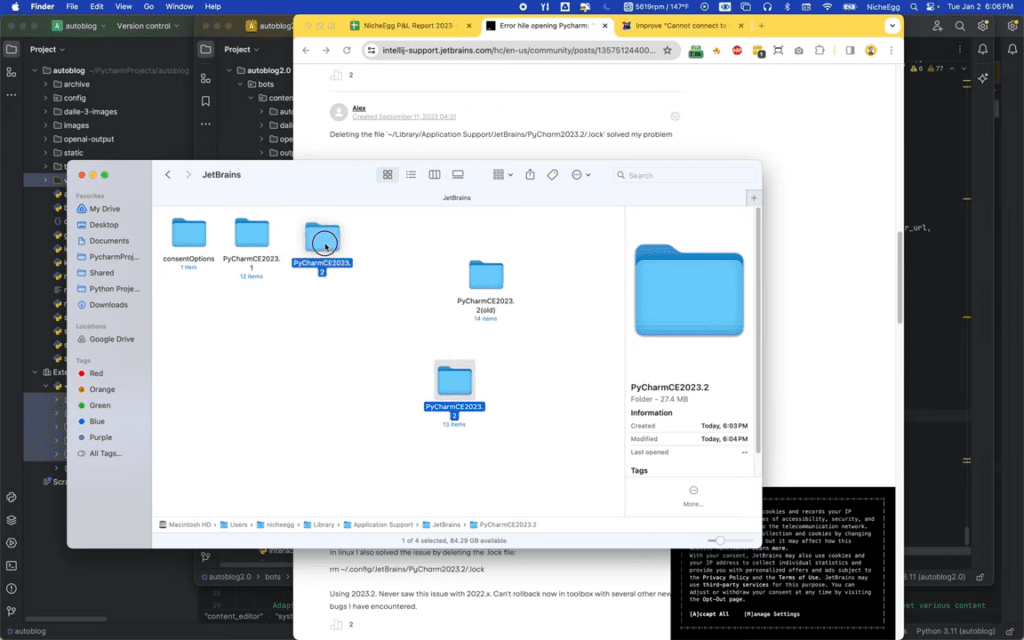
  1. Navigate to the JetBrains folder.
  2. Open the folder and look for subfolders.
  3. Rename each subfolder by adding “Old” to its name (e.g., config to configOld).
Fix pycharm error cannot connect to already running ide instance process is still running 1 34 screenshot
Fix pycharm error cannot connect to already running ide instance process is still running screenshot.

Testing the Solution

After renaming a folder, restart PyCharm to see if the issue is resolved. Here’s what I did:

  1. Renamed the first folder and restarted PyCharm – the problem persisted.
  2. Renamed the second folder and restarted PyCharm – still no luck.
  3. Renamed the third folder – PyCharm created a new folder, and the issue was resolved!

Keeping Your Settings Intact

By renaming the problematic folder rather than deleting it, PyCharm can recreate the necessary files without losing your settings and projects. This method ensures that all your work is preserved while resolving the issue.

Are you a visual learner? Then, check out my video titled “Fix Pycharm Error ⚠️ “Cannot Connect to Already Running IDE Instance. Process Is Still Running”” from my YouTube channel.

A video titled “Fix Pycharm Error ⚠️ “Cannot Connect to Already Running IDE Instance. Process Is Still Running” from my YouTube channel.

Frequently asked questions (FAQ)

What should I do if I can’t find the JetBrains folder?

If you can’t find the JetBrains folder, make sure you’re looking in the right directory. Use the “Go to Folder…” option in Finder and double-check the path: ~/Library/Application Support/JetBrains.

Will renaming the folders affect other JetBrains products?

Renaming folders might affect other JetBrains products if they share the same configuration files. Be cautious and only rename folders related to PyCharm if possible.

What if the issue persists after renaming all subfolders?

If the problem persists after renaming all subfolders, consider reaching out to JetBrains support or checking their official forums for further assistance.

Conclusion

If you’re facing a similar issue with PyCharm, try the above steps. Instead of deleting the entire JetBrains folder, rename each subfolder until you find the problematic one. This way, you can resolve the issue without losing your settings.

That concludes this article. What do you think? Let me know in the comments below (I read and reply to every comment). If you found this helpful, check out my full blog and subscribe to my YouTube channel. Thanks for reading!

Leave a Comment

Frequently asked questions (FAQ)

LiaisonLabs is your local partner for SEO & digital marketing services in Mount Vernon, Washington. Here are some answers to the most frequently asked questions about our SEO services.

SEO (Search Engine Optimization) is the process of improving your website's visibility in search engines like Google. When potential customers in Mount Vernon or Skagit County search for your products or services, SEO helps your business appear at the top of search results. This drives more qualified traffic to your website—people who are actively looking for what you offer. For local businesses, effective SEO means more phone calls, more foot traffic, and more revenue without paying for every click like traditional advertising.

A local SEO partner understands the unique market dynamics of Skagit Valley and the Pacific Northwest. We know the seasonal patterns that affect local businesses, from tulip festival tourism to agricultural cycles. Local expertise means we understand which keywords your neighbors are searching, which directories matter for your industry, and how to position your business against local competitors. Plus, we're available for in-person meetings and truly invested in the success of our Mount Vernon business community.

SEO is a long-term investment, and most businesses begin seeing meaningful results within 3 to 6 months. Some quick wins—like optimizing your Google Business Profile or fixing technical issues—can show improvements within weeks. However, building sustainable rankings that drive consistent traffic takes time. The good news? Unlike paid advertising that stops the moment you stop paying, SEO results compound over time. The work we do today continues delivering value for months and years to come.

SEO pricing varies based on your goals, competition, and current website health. Local SEO packages for small businesses typically range from $500 to $2,500 per month, while more comprehensive campaigns for competitive industries may require a larger investment. We offer customized proposals based on a thorough audit of your website and competitive landscape. During your free consultation, we'll discuss your budget and create a strategy that delivers measurable ROI—because effective SEO should pay for itself through increased revenue.

Both aim to improve search visibility, but the focus differs significantly. Local SEO targets customers in a specific geographic area—like Mount Vernon, Burlington, Anacortes, or greater Skagit County. It emphasizes Google Business Profile optimization, local citations, reviews, and location-based keywords. Traditional SEO focuses on broader, often national rankings and prioritizes content marketing, backlink building, and technical optimization. Most Mount Vernon businesses benefit from a local-first strategy, though many of our clients combine both approaches to capture customers at every stage of their search journey.

Absolutely! SEO and paid advertising work best as complementary strategies. Google Ads deliver immediate visibility and are great for testing keywords and driving quick traffic. SEO builds sustainable, long-term visibility that doesn't require ongoing ad spend. Together, they create a powerful combination—ads capture immediate demand while SEO builds your organic presence over time. Many of our Mount Vernon clients find that strong SEO actually improves their ad performance by increasing Quality Scores and reducing cost-per-click, ultimately lowering their total marketing costs while increasing results.