
TL;DR
Copy-paste the JavaScript snippet and add it via the free WPCode plugin—about 5 minutes total.
The script adds a CSS-style highlight animation to bold text as readers scroll, with a natural pen-like easing.
After saving, you must toggle the snippet Active in WPCode or nothing will happen (most common mistake).
You can exclude specific words from highlighting by editing one line in the code.
I spent way too long building this little JavaScript highlight scroll effect for my own blog and then realized I could just give it away 🤙 Bolded text can animate on scroll down your WordPress posts with this setup. No coding bootcamp required, I promise. 👇
I actually created this snippet because I wanted an interesting way to keep people on the page for a little longer. Movement keeps attention—something’s happening, and it catches the eye.
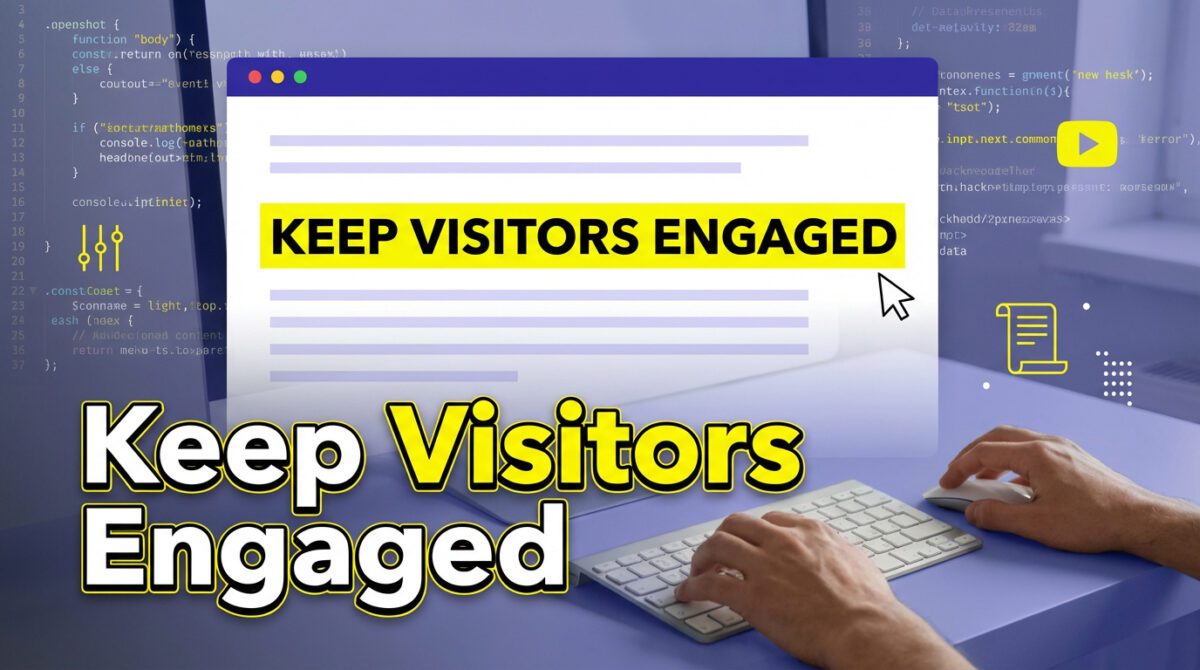
Keep your visitors engaged with this simple JavaScript snippet
What This Highlight Text on Scroll Effect Actually Does
Here’s what we’re working with: a JavaScript snippet that watches scroll position, and when a bolded piece of text enters the viewport, it gets an animated highlight effect—like a highlighter pen sweeping across the words.
The cool part is it mimics a real pen: it starts fast, goes slow, then goes fast again. That easing makes it feel organic instead of robotic, and that’s the difference between something that looks polished and something that looks like a cheap WordPress plugin from 2014.
I designed it to skip anything inside bullet points. Too many highlights looks spammy, and when everything moves, nothing feels special.
The effect works on standard WordPress blog posts where you already sprinkle bolded text through your writing. It’s built for real posts, not demos.
Get the Code (Seriously, Just Copy It)
This is super plug and play—copy my code, paste it, you’re done. No developer deep dive required into Intersection Observers or CSS transitions unless you want one.
The snippet handles everything automatically: it finds bold text, watches scroll position, and triggers the highlight animation with that pen-like easing.
It runs entirely client-side, so it won’t slow down your server or interfere with caching.

Did You Know?
Modern browsers can run scroll-based animations efficiently using the Intersection Observer API. It only triggers when elements enter view, instead of constantly polling in the background.
How to Add JavaScript to WordPress (Step by Step with WPCode)
Most tutorials lose people by assuming you’re editing functions.php or SSH-ing into a server. This uses a free plugin instead.
Step 1: Install WPCode
In your WordPress dashboard, go to Plugins > Add New and search for WPCode. WPCode Lite is enough. Install and activate it, then look for Code Snippets in your sidebar.
Step 2: Create a New Snippet
Open Code Snippets, click Add New, and choose Add Your Custom Code (New Snippet). You’ll get a blank editor for your snippet.
Step 3: Set the Code Type to JavaScript
In the Code Type dropdown, select JavaScript Snippet. If you pick the wrong type, it won’t run.
Step 4: Paste and Save
Paste the full snippet into the editor, give it a name like “Highlight Text on Scroll,” and click Save Snippet. Saving alone isn’t enough.
Step 5: Activate It
After saving, flip the toggle from Inactive to Active. This is the step everyone misses.
The One Mistake That Trips Everyone Up
This is common enough that it deserves its own section. If you paste your code and click save, nothing will happen until you activate it.

Critical Error
After saving your snippet in WPCode, it is Inactive by default. You must toggle it to Active or the highlight-on-scroll effect will not appear—this is the #1 reason people think the code is broken.
I’ve seen countless forum posts where someone says the code doesn’t work, and the answer is literally: click Activate.
How to Exclude Specific Words From the Highlight
I baked in an exclusion list so you can skip words you don’t want highlighted. Excluded labels prevent weird highlights on recurring sections like “Key Takeaways.”
In the snippet, you’ll see a section where you can add words or phrases for the script to ignore. Add recurring headings or labels like “Summary,” “Pro Tip,” or “Editor’s Note” so they don’t animate.
If you don’t need exclusions, you can remove that part—everything else still works. The script is flexible either way.
What to Exclude vs. What to Highlight
Keep Excluded
- Words/phrases that are always bolded by your template
- Section headers like Key Takeaways or labels
- Recurring structural elements that look odd when animated
Safe to Highlight
- Regular bold phrases inside paragraphs
- Product names and important terms
- Short phrases you want readers to notice as they scroll
Does This Actually Help Engage Readers?
I can’t point to a rigorous study claiming scroll-triggered highlights increase time on page by a specific percentage. But the logic is intuitive: subtle motion nudges attention and encourages scrolling.
It’s the same principle behind longform pages from sites like The New York Times and Apple—movement draws the eye. Scroll-tied micro-interactions feel premium without needing heavy animation frameworks.
If you want more control, you can explore libraries like GSAP + ScrollTrigger, but that’s usually overkill here. The snippet is the simple win.

Success!
The highlight-on-scroll effect works on modern browsers and adds no noticeable load time. It only fires when bolded text actually enters the viewport, so it stays lightweight even on long posts.
A Quick Note on CSS-Only Alternatives
If you Google this topic, you’ll see CSS-only approaches using animation-timeline: view(). CSS scroll-driven animation is real, and browser support is improving.
The tradeoff is support isn’t universal yet. As of mid-2025, Safari and Firefox have limited or partial support for CSS animation timelines, and you lose some of the custom easing. JavaScript is more consistent for real visitor traffic right now.
Frequently Asked Questions
No. It’s lightweight and uses Intersection Observer so it only runs when needed, not constantly in the background.
Yes. Because it’s triggered by scrolling, it works the same on phones and tablets. The animation is responsive by nature.
Yes. In the snippet, change the CSS highlight color value to any hex color you want. It’s a one-value tweak.
The effect stops immediately because the code runs through WPCode. No plugin, no snippet.
Usually, yes—most builders output bold text with <strong> or <b>. Non-standard markup may need tweaks.
Final Thoughts
I built this because I wanted my blog posts to feel more alive, and it turned out worth sharing. Install WPCode, paste the snippet, activate it, and you’re done.
It’s faster than making coffee, and it automatically highlights bold phrases across your posts as readers scroll.
If you want to engage readers with animation but thought it required hiring a developer or learning JavaScript from scratch, this is your shortcut. Copy, paste, hit activate, and go check your site. That’s it. “It’s not proprietary to me at all,” so go put this to good use. 👇
Sources and References
- Frontend Masters — Highlight Text When a User Scrolls Down
- CSS Script — Highlight Text Scroll Animation Timeline
- The Code Creative — GSAP ScrollTrigger Text Animation
- Codrops — On Scroll Text Highlight Animations
- Can I Use — CSS Animation Timeline Browser Support
- MDN Web Docs — Intersection Observer API
- WordPress.org — WPCode Plugin