
TL;DR
The n8n agent placeholder fix is literal: type “placeholder” in the HTTP Request node’s URL field so the agent can supply dynamic URLs at runtime.
Without it, the agent can find links but hits invalid URL errors because the tool isn’t set up for dynamic routing.
Set Expected Response Type to Text to avoid huge HTML/JSON blobs that degrade LLM output.
For JS-heavy or bot-protected sites, use Scrapingbee or Firecrawl for more reliable scraping than raw HTTP requests.
Yo. 👋 So I was having a lot of trouble figuring out how to use HTTP request within an agent and I finally figured it out. The fix is so stupidly easy that I’m almost embarrassed it took me as long as it did.
But if you’re the person staring at that URL field in your n8n HTTP Request node right now, wondering what the hell you’re supposed to type when the whole point is that the AI picks the URL… this one’s for you. 🤙
I’m going to walk you through exactly what I did, the error I hit, and the two-part fix that made everything click. If you’re already building AI agent workflows and just need this one piece of the puzzle, you’re in the right spot.
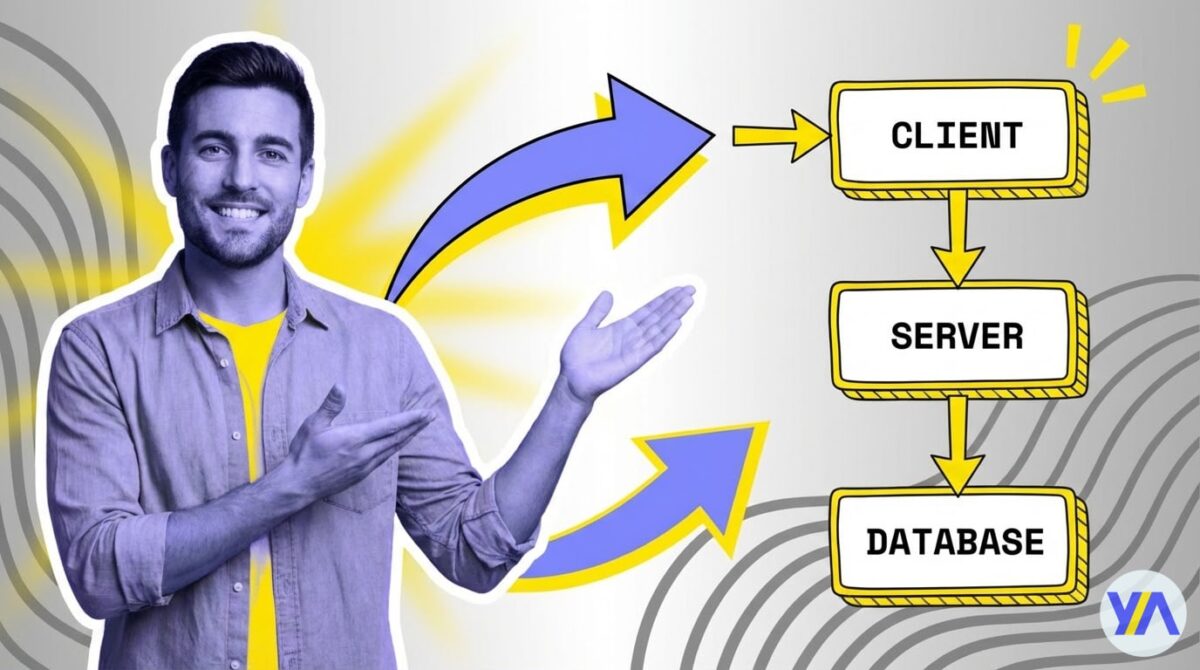
Learn how to effortlessly use HTTP requests in your workflow
The Problem: What Do You Even Put in the URL Field?
When you add an HTTP Request node as a tool for your n8n AI agent, it demands a URL. Makes total sense for a normal workflow where you know the endpoint ahead of time.
But when you’re building an n8n web scraping agent that’s supposed to decide on its own which URLs to hit? You’re stuck.
I need to put a URL in order for it to search, but I don’t know what I want to search. I want to ask the agent to search if it needs to search. I don’t know what I want.

That was me. Literally just staring at the field like an idiot. I tried leaving it blank, nope, error. I tried putting in a sample URL and nope, it just hits that one URL every single time.
The whole point of giving an agent a tool is that it decides when and how to use it. So what gives?
The Fix: Just Type “Placeholder.” Seriously.
The answer was literally right there in the n8n interface the whole time. There’s a little note that says “add placeholder” and they mean it literally. You type the word placeholder in the URL field. That’s it. That’s the fix.
When you do this, n8n treats the URL as a dynamic parameter, a slot the AI agent fills in at runtime based on whatever it decides it needs to fetch. The agent sees the HTTP Request tool in its toolkit, knows it can use it, and supplies whatever URL it wants when the moment comes—no hardcoding required.

How the placeholder works
In n8n, when you add a tool to an agent, any field marked as a placeholder becomes a parameter the model can control. The agent follows a ReAct (Reason, Act, Observe) pattern (see this overview): it reasons about what it needs, calls the tool with its own inputs, observes the result, and repeats.
The placeholder makes the URL field usable in that “Act” step.
What Happens Without the Placeholder
I tested this so you don’t have to. I had some sample text in markdown format feeding into my agent node. The system prompt told the agent to find URLs in the input and browse the content using the HTTP Request tool. Without the placeholder configured properly, here’s what happened:
The agent did find URLs in my text. It tried to use the tool. And then it just face-planted. Every request came back invalid.
That HTTP Request tool error in n8n is the exact wall most people hit. The agent is smart enough to identify what it wants to do, but the tool isn’t configured to accept a dynamic URL—so every request fails.
Once I typed placeholder in the URL field and left everything else as-is, I hit play again and you could see right there that it was already crawling pages.

Night and day. It just worked.
The Second Fix You’ll Miss (And It’ll Ruin Everything)
Now here’s the part where I need you to not skip ahead because this is where most people bail and then wonder why their setup is broken. Getting the placeholder right is step one.
But if you stop there, you’re going to get back a wall of HTML or JSON that’s so massive your AI agent chokes on it. The output will be totally unusable—a huge blob of raw page data.
You need to change the type of input that you’re getting. You’re going to fail if you don’t do this next part.
In the HTTP Request node, there’s an Expected Response Type setting under “Optimize Response.” By default it may be set to HTML or JSON. You need to switch that to Text.

Do not skip this step
If you leave the response type as HTML or JSON, the agent receives the entire raw page source. That can be tens of thousands of tokens, which can blow past your context window, raise costs, and produce garbage summaries. Switch to Text to get cleaner, stripped-down content the AI can actually use.
When I switched to Text, the responses came back as tiny little bits that are just the text of the page. I verified it by grabbing a string from the output, searching for it on Google, finding the actual page, and confirming the agent had pulled real content.
Was every single piece of text captured? Honestly, no—some stuff was missing and I’m not 100% sure what it grabs versus what it drops. But it was absolutely enough to summarize.
Either way, that was enough to feed it into the AI to give me back an answer. And that’s the real bar here. You’re not trying to get a pixel-perfect copy of the page. You’re trying to get text from a URL and feed it to an LLM for processing. Text mode does that job.
Your Agent Setup: The Pieces That Make This Work
For reference, here’s the workflow layout I used. Keep this simple and you’ll get results fast.
Workflow Nodes
- Edit Fields node — Contains the sample markdown text with URLs embedded in it
- AI Agent node — Connected to an OpenAI Chat Model (GPT-4), with the HTTP Request as a tool
- HTTP Request node — Method: GET, URL:
placeholder, Response Type: Text - System Prompt — Tells the agent to find URLs in the input and browse their content using the HTTP Request tool
The system prompt does a lot of the heavy lifting here. I told the agent explicitly to use the HTTP Request tool, because agents are meant to be used with tools, not by themselves, and the agent decides whether or not it’ll actually use them.
That’s a key concept: the agent chooses whether to use a tool based on context.
If you want it to always scrape, you tell it to in the system prompt. If you want it to only scrape sometimes, write the prompt differently. Simple as that.
Agents decide whether to use tools; your system prompt is the steering wheel.
When HTTP Request Isn’t Enough: Scrapingbee and Other Options
The raw HTTP Request tool works. But I’ll be honest, it has real limitations. It sends a basic GET request and gets back whatever the server returns. If a site loads content dynamically with JavaScript, you’ll get an empty shell.
If the site has bot detection, you’ll get blocked. These aren’t hypothetical problems—they’re the main reasons agentic scraping fails in production (see Zyte’s write-up).
I mentioned that I have a different method using Scrapingbee, and I haven’t fully tested it as a tool inside the agent yet. But it’s worth understanding why you’d want something like that. Reliability matters once you go beyond toy examples.
| Feature | HTTP Request (Built-in) | Scrapingbee | Firecrawl |
|---|---|---|---|
| JavaScript Rendering | No | Yes | Yes |
| Anti-Bot Bypass | No | Yes | Limited |
| Clean Text/Markdown Output | Manual (set to Text) | API option | Native markdown |
| Free Tier | Unlimited | Limited free credits | 500 credits/mo |
| Paid Plans | Free | Starting around $49/mo | Starting at $16/mo |
| Best For | Simple static pages | JS-heavy sites, stealth | LLM-ready output |
For quick-and-dirty scraping of static pages where you just need the text content, the built-in HTTP Request with the placeholder trick works great. For anything more serious, especially if you’re scraping sites that actively try to block bots, you’ll want an API-based scraper plugged into your agent instead. Pick the right tool for the job.
The cool thing is the pattern is the same either way. You give the agent a tool, use a placeholder for the dynamic URL, and let the AI decide when to call it. The only difference is what fetches the content under the hood.
Frequently Asked Questions
Yeah, you can attach several tools to one agent. You might have one HTTP Request tool for general fetching and a Scrapingbee tool for trickier sites. The agent picks which one to use based on your system prompt instructions and the context of what it’s trying to do. Multiple tools are fine.
It should work for any HTTP method. You can set the method to POST and still use placeholder for the URL. You can also add placeholders for body parameters if you need the agent to dynamically construct the request payload. Same principle.
This usually comes down to the model interpreting your system prompt loosely. GPT-4 is generally better at following tool-use instructions than GPT-3.5, but even then, if the prompt is ambiguous the agent might decide it can answer without scraping.
Be explicit: say “You MUST use the HTTP Request tool” rather than “you can browse URLs if you want”.
It depends on page size and your response type setting. With HTML or JSON, a single page can easily be 10,000 to 50,000 tokens or more. With Text mode, you’re typically looking at roughly 500 to 3,000 tokens per page. Text mode saves money as well as context.
The placeholder pattern is an n8n feature, not an OpenAI one. It works with whatever chat model you connect to the agent node as long as it supports function/tool calling.
Claude, Gemini, and open-source models through Ollama (with tool calling) can all use the same setup. The n8n agent framework handles the tool calling.
Final Thoughts
Two fixes. That’s all this was. Type “placeholder” in the URL field so your agent can supply its own URLs dynamically, and switch the response type to Text so you don’t drown the AI in raw HTML. I spent way too long stuck on this, and the solution was embarrassingly simple once I saw it. Learn from my pain.
If you’re building anything more complex like scraping JavaScript-rendered pages, hitting sites with serious bot protection, or doing this at any kind of scale, swap out the basic HTTP Request for something like Scrapingbee or Firecrawl. Same placeholder pattern, better results.
But for getting started and actually seeing your n8n agent browse the web and come back with answers? This setup gets it done. Now go build something with it.