
I want to show you how to properly upload your products from your WooCommerce WordPress website onto your Facebook shop so you can run ads and use the features that Facebook has available.
There are a couple of ways to do this. There are a few plugins that make this extremely simple.
I initially used the Product Feed Pro for WooCommerce plugin. The problem with this plugin is that it took all the products I had and shoved them into the first product. And every other product was a variant of that first product, which did not work for me.
But not; I’m using a plugin called product feed pro (now called CTX feed). This is the one that’s working for me.
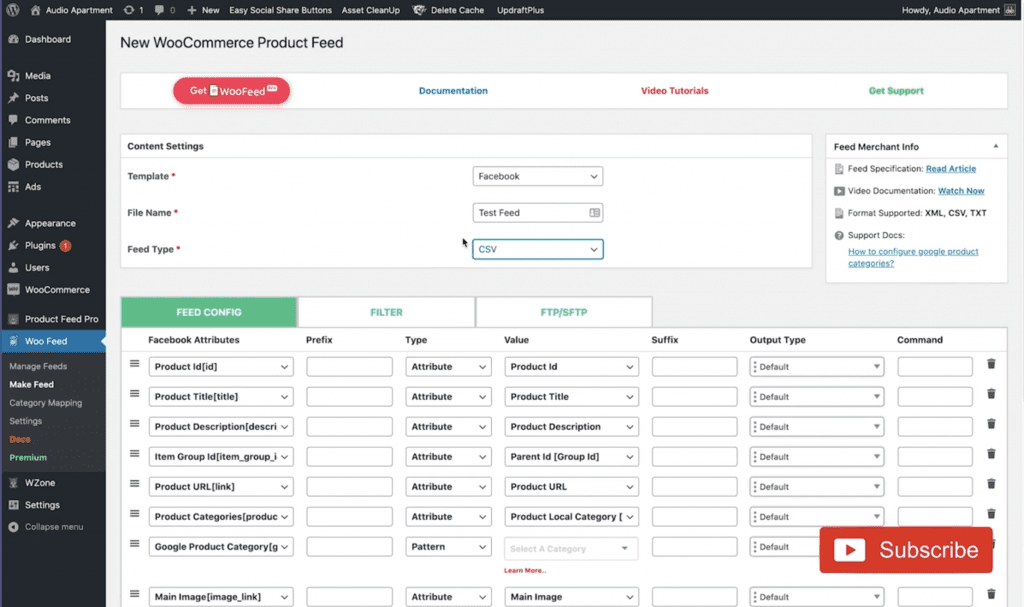
I will also show you how to solve one of the problems I had, showing all the HTML on the product.
How to upload WooCcommerce product to Facebook
Here’s how to properly upload your products from your WooCommerce WordPress website onto your Facebook shop.
Create CSV file
We’re going to go to Facebook. I’m going to do a CSV because that’s what I want. That way, I can read the file itself, which shouldn’t give me any errors. But let’s see what happens. So right now, I’m selling a few mugs, so I’m just going just to put that as mugs.
So I’m going to click, go ahead, and generate. It’ll take a few seconds, and I’ll go into the Facebook shop and upload that file. Great. So the CSV is created. I’m going to copy it.
Create a catalog
Now I can go to my business manager. Go to business.facebook.com/home. Under business settings, you should be able to find assets and then catalogs right under that. Okay, I’m going to click “add the new catalog” because I want to show you this one from scratch. So Test Create Catalog.
I’m going to allow myself to see it. Then, I can manage everything as an administrator. And which pixel do I want to associate this with? This is the pixel that I want. I just created a catalog called “Test.” Cool. So now, to add products to that catalog.
Add products to the catalog
It opens up a new tab, and now that I’m in here, I can click Add Items, and it’s going to go through a little bit of a wizard. I want to bulk upload because I have a file. Upload a file like a schedule feed or spreadsheet. So that’s exactly what we’re doing.
Click next. I will click the schedule feed because that’s what we have to provide. I will paste the URL. I got that from over here. Then I click next, and it should be doing all the work in the background after you click next.
Oh, one more thing. When do you want it to refresh? So every hour from now on, we will start refreshing the feed and data source. Then, click “upload.” I’m in the middle of uploading. It’s going to take a couple of seconds.
How to fix product description length limits
We have 82 products that were rejected. And the description is all HTML, and we don’t want that. The issue is that the random HTML creates a ridiculous amount of characters. So we need to fix that. And how do we fix that?

Instead of creating this CSV file, I will create a brand-new one. But instead of creating a CSV, I’m going to create an example file, and then I’m going to give it a filter. You’ll see in a second that it strips out all the HTML.
So let’s go to Facebook. The file name will be a news feed. This is just a test, and it’ll all make an example. Now it’s not a CSV file. And now, what I’m going to do is go right here to the script and product descriptions, and instead of the default, I’m going to click strip tag.
Now you may be able to make this work the stripping the HTML out of the x amount file or your file in general with a CSV file. I tried it, but it didn’t work for me; it’s possible that the file didn’t refresh on my end. But to remedy that, I’m just going to go all XML.
Here we have a news feed. I’m going to copy that. Okay, I’m going to create a new catalog, and I’m going to delete this test one.
Same process. We’re just adding a new property. Add items to the open catalog, and add us to the products. When you click to add an item, it takes you directly to the upload page. You don’t have to go to that catalog manager.
And then the last thing we have to do is set the schedule for this event to click next because it’s not important. And for the data source, I’m just going to click next and enable it anyway. Now while we wait for this, I want to show you some more of the problems the last feed had.
How to fix random HTML in the product description
So you know how I mentioned that the products showed each HTML in the description? Take a look at this. You don’t want your products to have this kind of description.
This is not user-friendly. It doesn’t look good. So this is why we want to strip the HTML out of these products. So now, let’s look at our products and look at this. Zero products were rejected, and all of them were added. So you’re not going to find any more errors that say, “Hey, your description is too long,” or “there is no description.”
No more errors. And all I did was create an XML file. And then I added that rule to do the “this is the strip text description instead of doing the default description.” And one more thing that I want to show you is the actual product so that you can see no more errors or HTML in the description.
Let’s click random product. No more HTML here. There’s a code here, a short code that’s WordPress, a WordPress shortcode. So you might have to go through those and do something about them. But as far as the tags, the HTML tags go there. They’re gone.
And if I had to go into every one of them and click edit and maybe delete that one line, it’s not going to kill me to do that if I don’t have too many products. But that is how you do that.
Are you a visual learner? Check out my video below, titled “Upload WooCommerce Product to Facebook Catalog CTX Feed (FIX ERRORS: Remove HTML & fixed variants),” from my YouTube channel, as I show you all this firsthand.
Frequently asked questions (FAQ)
Do you still have questions? Below are some of the most commonly asked questions about adding products to Facebook.
How do you make use of CTX feed?
Click CTX Feed on the left-hand admin panel and then select the Make Feed option. You will first only see the Content Settings area. When you select a template, more options will emerge. You must first choose your nation.
How do you make use of CTX feed?
Click CTX Feed on the left-hand admin panel and then select the Make Feed option. You will first only see the Content Settings area. When you select a template, more options will emerge. You must first choose your nation.
Is CTX feed available for free?
While the CTX Feed free edition includes the majority of the functionality required to construct a feed for your selected marketplace, the PRO version includes customizable features such as smart and complex filters, dynamic attributes, and attribute mapping.
Conclusion
Okay, so that concludes this article. What do you think? Let me know in the comments below (I read and reply to every comment). If you found this helpful, check out my full blog and subscribe to my YouTube channel. Thanks for reading!