
How to Light an LED in TinkerCad
Have you ever wanted to build an electrical circuit with batteries, LEDs, and wires, but didn’t know where to start? Maybe you’re worried about the cost of parts or the safety of soldering.
Enter TinkerCad Circuits. This free, web-based tool allows you to learn electronics without getting your hands dirty. In this guide, we’ll walk you through building your first virtual circuit—from a simple battery connection to a professional breadboard setup.
Why Use TinkerCad for Electronics?
Before we dive into the “how-to,” let’s look at why TinkerCad is the ultimate sandbox for beginners:
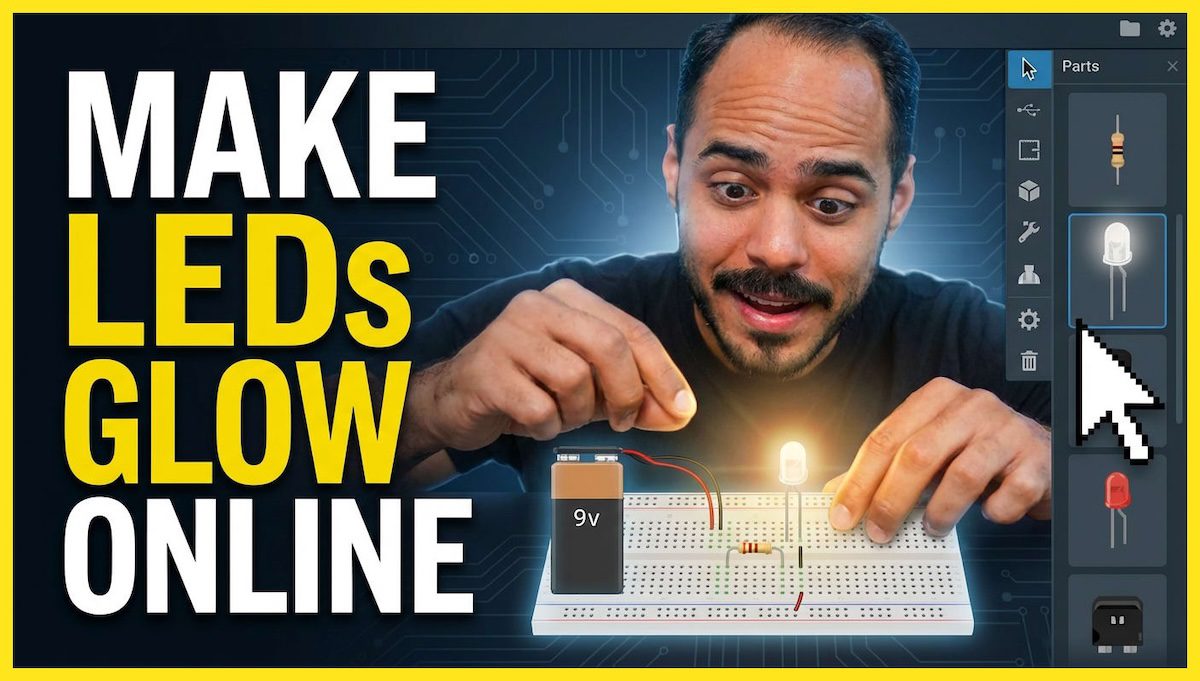
- Zero Cost: Access professional-grade components like Arduinos, sensors, and power supplies for free.
- Risk-Free: If you wire something incorrectly, the component might “explode” on screen, but your real-world desk stays safe.
- No Soldering: Learn the logic of circuitry without the steep learning curve of hardware tools.
The Essentials: Components You’ll Need
In this tutorial, we will use four primary components. Here is a quick breakdown of their roles:
| Component | Function | Fun Fact |
| 9V Battery | Power Source | Provides the “push” (Voltage) for the electricity. |
| LED | Light Output | Standing for Light Emitting Diode, it only allows current to flow in one direction. |
| Resistor | Current Limiter | Prevents the LED from receiving too much power and burning out. |
| Slide Switch | Control | Closes or opens the loop to turn the light on and off. |
Step 1: Setting Up Your Workspace
- Go to the TinkerCad home page.
- On the left-hand panel, select Circuits.
- Click the green Create New Circuit button.
- You are now in your workspace! You can drag and drop any component from the right-hand menu into the center.
Step 2: The “Quick & Dirty” Circuit (And why it fails!)
If you connect a 9V battery directly to an LED, you’ll notice something dramatic happens when you click Start Simulation.
⚠️ Warning: Without a resistor, a 9V battery provides too much current. In the simulation, your LED will show a “shatter” icon. This means it exploded!
To fix this, we need to understand the LED’s legs:
- Anode (Bent Leg): The positive terminal.
- Cathode (Straight Leg): The negative terminal.
Step 3: Adding the Resistor and Switch
To create a working, safe circuit, follow this wiring path:
- The Resistor: Place a resistor between the positive battery terminal and the LED Anode.
- Pro Tip: Set your resistor value to 0.4 kΩ (400 Ohms) for a bright, safe light.
- The Switch: Place a Slide Switch in the middle. Connect the battery to the “Common” (middle) pin. This allows you to break the circuit manually.
- Color Coding: Always keep your wires organized!
- Red: Positive (+)
- Black: Negative (-)
Step 4: Pro-Level Organization with a Breadboard
As your projects get bigger, wires get messy. This is where the Breadboard comes in. A breadboard allows you to plug components into “rails” (connected rows and columns) without soldering.
How Breadboard Rails Work:
- Vertical Power Rails (+ and -): These run the length of the board and are used to distribute power.
- Horizontal Component Rows: These are used to connect components to each other.
The Final Build Order:
- Connect the 9V Battery to the Breadboard power rails.
- Jump the power from the rail to a Slide Switch.
- Connect the switch output to a Resistor.
- Connect the resistor to the LED Anode.
- Connect the LED Cathode back to the negative rail.
Click Start Simulation, slide the switch, and watch your LED glow!
Conclusion & Next Steps
Congratulations! You’ve just built your first digital circuit. You’ve learned about polarity, resistance, and the utility of breadboards.