

TL;DR:
- Rename folders in ~/Library/Application Support/JetBrains by adding “(old)” instead of deleting them.
- Start with the ConsentOptions folder; if that fails, rename your version folder (e.g., PyCharmCE2023.2).
- PyCharm auto-regenerates missing folders; your other settings and plugins remain intact.
You try to launch PyCharm and instead of your IDE you get a stubborn “cannot connect” error. I hit this last week, followed official advice to wipe the JetBrains folder, and it worked—at the cost of every setting, plugin, and customization. The better fix: rename folders so PyCharm regenerates only what’s broken while your configuration stays intact.

Warning…
Don’t delete your entire JetBrains folder. Rename suspect folders by appending (old) so PyCharm can rebuild fresh copies while your original configuration stays backed up and recoverable.
Quick visual fix for PyCharm connection issues by renaming JetBrains folders instead of deleting
What Actually Causes This Error
The “cannot connect” startup failure usually stems from stale or corrupted lock files under your JetBrains Application Support directory. After a crash or force-quit, PyCharm may see an unexpected lock and refuse to launch, believing another instance is running.

These lock files are typically hidden on macOS (they start with a dot), so you won’t see them in Finder unless you reveal hidden files (Cmd+Shift+.). The relevant path: ~/Library/Application Support/JetBrains/. JetBrains uses a consistent structure across IDEs; see their directories reference.

Quick tip
Use Finder > Go > Go to Folder (Cmd+Shift+G), paste ~/Library/Application Support/JetBrains, and press Enter. Reveal hidden files with Cmd+Shift+..
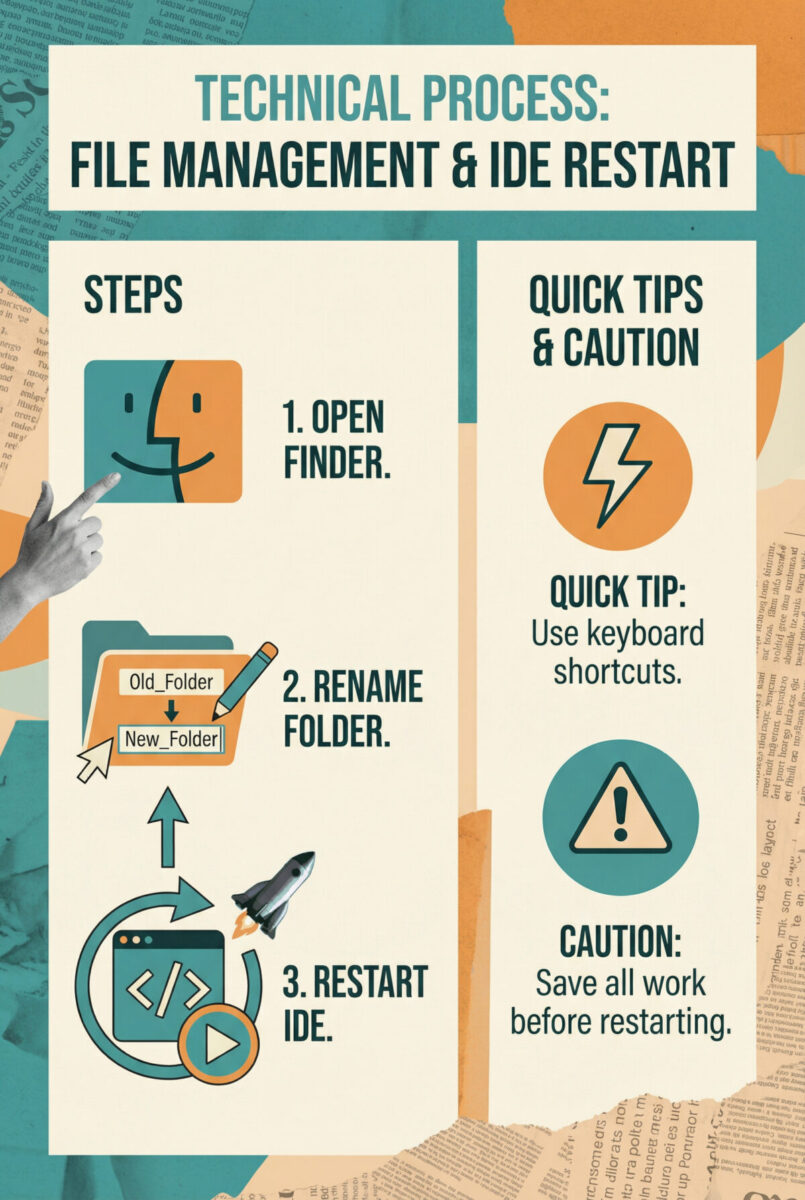
The Smarter Fix: Rename Instead of Delete
This approach preserves your configuration while letting PyCharm replace only what’s corrupted.
Step 1: Access Your Hidden Library Folder
Open Finder, choose Go > Go to Folder (Cmd+Shift+G), paste ~/Library/Application Support/JetBrains, and press Enter. That opens the JetBrains folder used by PyCharm and other JetBrains IDEs.
Step 2: Identify Your Folders
- ConsentOptions (telemetry and consent preferences)
- PyCharmCE2023.2 or similar (version-specific config)
- Optionally older folders if you’ve done this before (e.g., PyCharmCE2023.2(old))
The ConsentOptions folder can block startup when corrupted. See JetBrains’ tracker: IDEA-275638.
Step 3: Rename Systematically
Close PyCharm completely. Right-click ConsentOptions and rename it to ConsentOptions(old). Launch PyCharm.
If PyCharm starts, you’re done—PyCharm will create a fresh ConsentOptions folder and your settings, plugins, and themes remain untouched. You can delete ConsentOptions(old) after confirming all is well.
Step 4: If That Didn’t Work
Rename your version folder (e.g., PyCharmCE2023.2) to PyCharmCE2023.2(old) and start PyCharm. It will generate a new default folder. Your old folder remains as a safe backup you can harvest from.
To selectively restore, copy items from the old folder into the new one while PyCharm is closed. Here’s what the common subfolders contain:
| Folder | What it contains | Notes |
|---|---|---|
| options | IDE settings, keymaps, color schemes, inspection profiles | Restore first |
| plugins | Installed plugins and their configs | Restore second |
| scratches | Scratch files and consoles | Restore if needed |
| jdbc-drivers | Database drivers | Restore if you use DB features |
| logs | Debug logs | Usually ignore |
| system/caches | IDE caches | Usually ignore; regenerate |
Start small: copy only options, relaunch, verify. Then copy plugins and relaunch again. This isolates any corrupted config.
Why This Works (And Why the Forum Advice Falls Short)
JetBrains recommends File > Invalidate Caches / Restart first (docs). When that fails, many forum posts jump to deleting the entire JetBrains directory—fast, but destructive. Renaming gives you a reversible, safer path and preserves a known-good backup.
Also, you can export settings (File > Manage IDE Settings > Export Settings) or enable Settings Sync via your JetBrains Account to back up configs across machines (guide).
What to Do on Windows or Linux
Same rename strategy, different locations:
- Windows: %APPDATA%/JetBrains/<PRODUCT><VERSION>
- Linux: ~/.config/JetBrains/<PRODUCT><VERSION>
- macOS: ~/Library/Application Support/JetBrains/<PRODUCT><VERSION>
Preventing This in the Future
- Export your settings regularly (30 seconds) before major updates.
- Enable Settings Sync for automatic backups across devices.
- Avoid force-quitting; give PyCharm a minute to recover to prevent lock corruption.
- Time Machine or your system backup will cover Application Support as extra insurance.
When You Should Just Reinstall
If renaming doesn’t help, PyCharm crashes right after regenerating folders, or you see multiple unrelated errors, do a clean reinstall.
- Export settings (File > Manage IDE Settings > Export Settings)
- List installed plugins and back up scratches you need
- Fully uninstall per JetBrains guide, reinstall, then import your settings

Frequently asked questions (FAQ)
Yes, but it’s tedious to find every lock and you might miss other corrupted files. Renaming the parent folder is cleaner, reversible, and lets PyCharm regenerate everything it needs.
No—this only affects IDE configuration. Your source code, repos, and virtual environments live elsewhere and are unaffected by renaming config folders.
Do’s
- Rename folders by appending “(old)” instead of deleting.
- Start with ConsentOptions, then your version folder if needed.
- Copy back options first, then plugins.
- Export settings and enable Settings Sync after recovery.
Don’ts
- Don’t nuke the whole JetBrains folder as a first step.
- Don’t force-quit PyCharm unless absolutely necessary.
- Don’t copy caches/logs back—let PyCharm rebuild them.
- Don’t rename folders while PyCharm is running.


