How to create an Isometric 3D Logo on Tinkercad

No excerpt found

Spread the love

Have you ever seen 3D-printed letters or words that seem to change with perspective? This is something I have always wanted to do, and luckily the makerHub logo lends itself perfectly to this kind of project.

So, today we will be creating an isometric version of the MakerHub. Our goal is to create the image below. It will be really easy and a lot of fun, so let’s get to it.
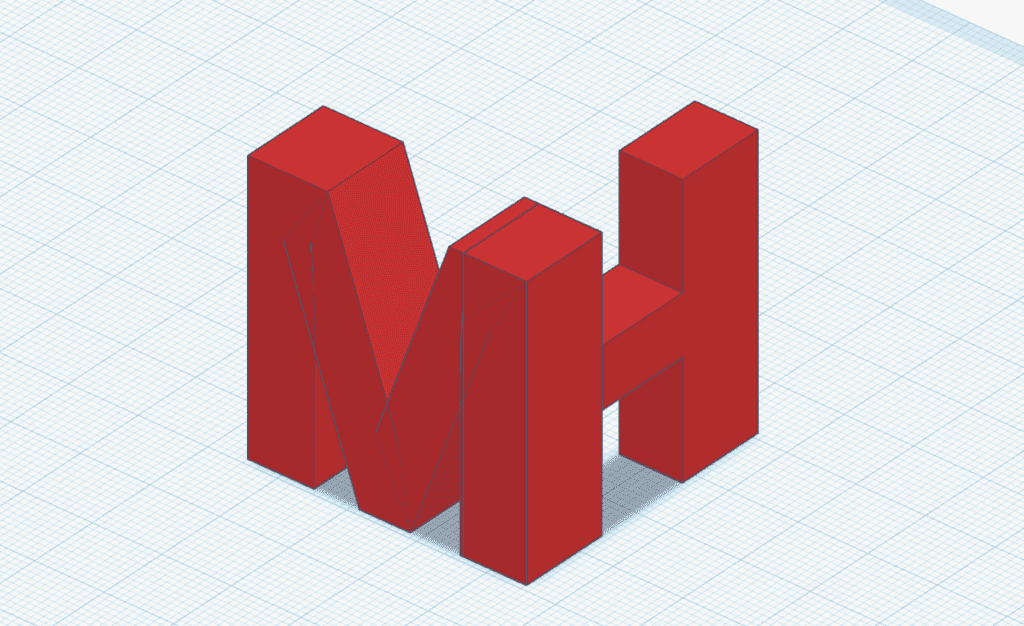
Screen shot 2022 11 20 at 11 27 24 pm

Step 1: Create a file

The first step is to go to your tinker cad dashboard and creates a new 3D design file. You will see a blank canvas like the one below. This will be our workplane.

Since our final image will be isometric, let’s stay in a flat (isometric) view. On the bottom of the left side menu, you will find a button that says “witch to perspective” or “switch to flat view” (depending on what view you are currently on. Select flat view.
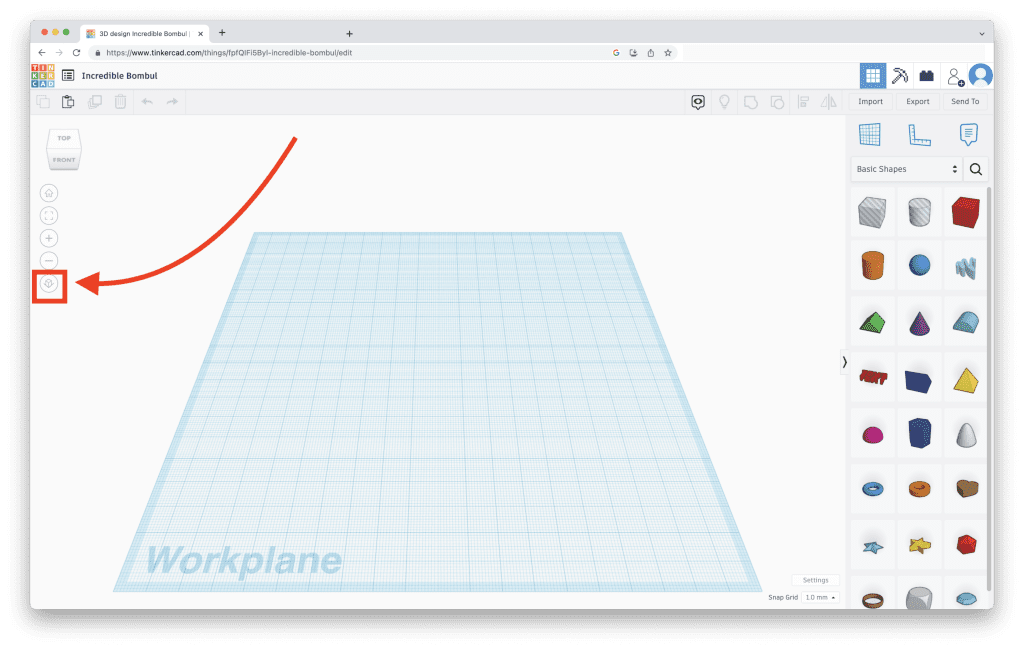
Screen shot 2022 11 20 at 11 11 48 pm

Step 2: Select text

Next, select the text tool from the right side of the screen and drag it onto your workplane. The default text will read “TEXT,” but we can change this to whatever we want. But for now, let’s just keep the text as it is.
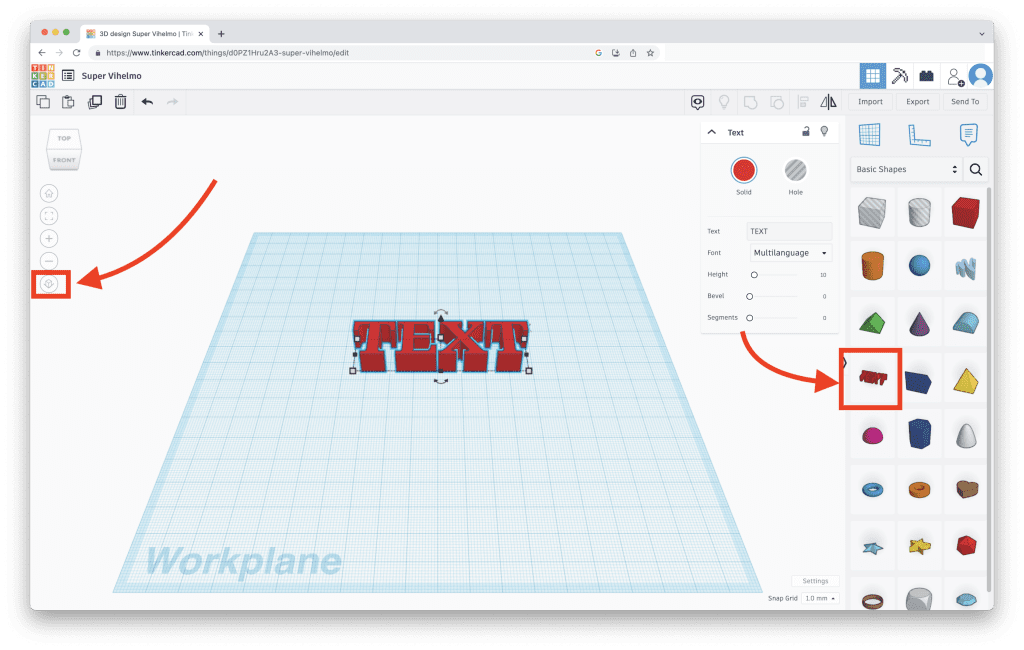
Screen shot 2022 11 20 at 10 11 39 pm 1

Step 3: Orient text

Let’s properly orient the text to make it easier to work with. Tilt the text upright by selecting the text block, grabbing onto the curved anchors and the right or left side, and dragging to (90 degrees), as seen in the image below.
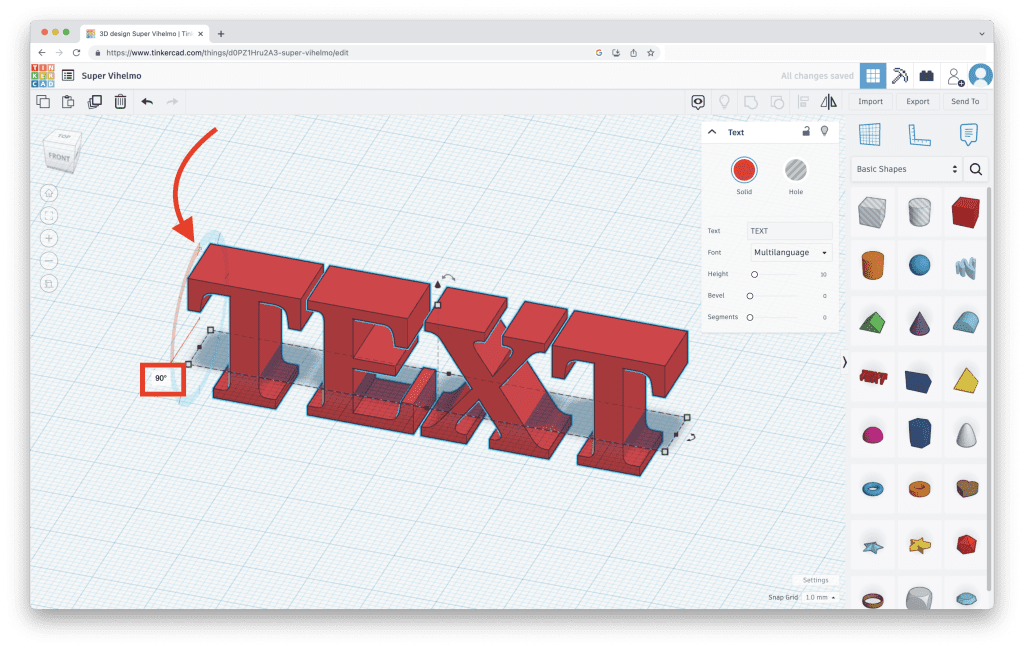
Screen shot 2022 11 20 at 10 31 15 pm

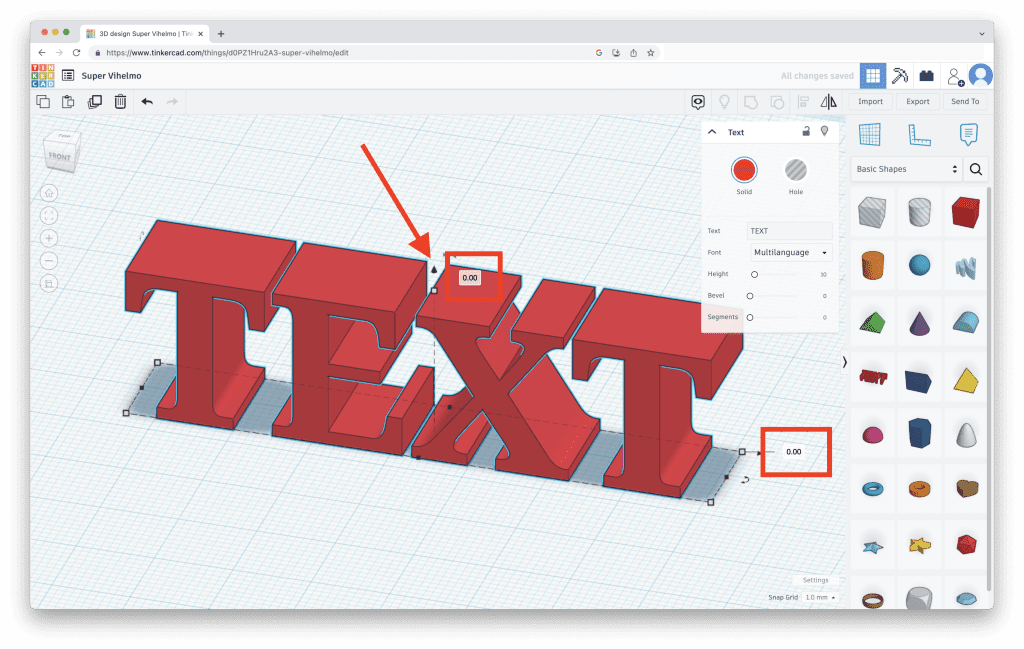
Next, level out the block onto the workplane. Select the up arrow n the middle of the text block and pull it upwards until the horizontal metrics read 0.00. as in the image below. Now your the is sitting properly on the workplane.
Screen shot 2022 11 20 at 10 25 43 pm 1

Step 4: Duplicate text

To get the final image, we need to rotate individual letters to be perpendicular to each other. We won’t be able to do this with one solid text block, so we need to create two separate letters and manipulate them individually.

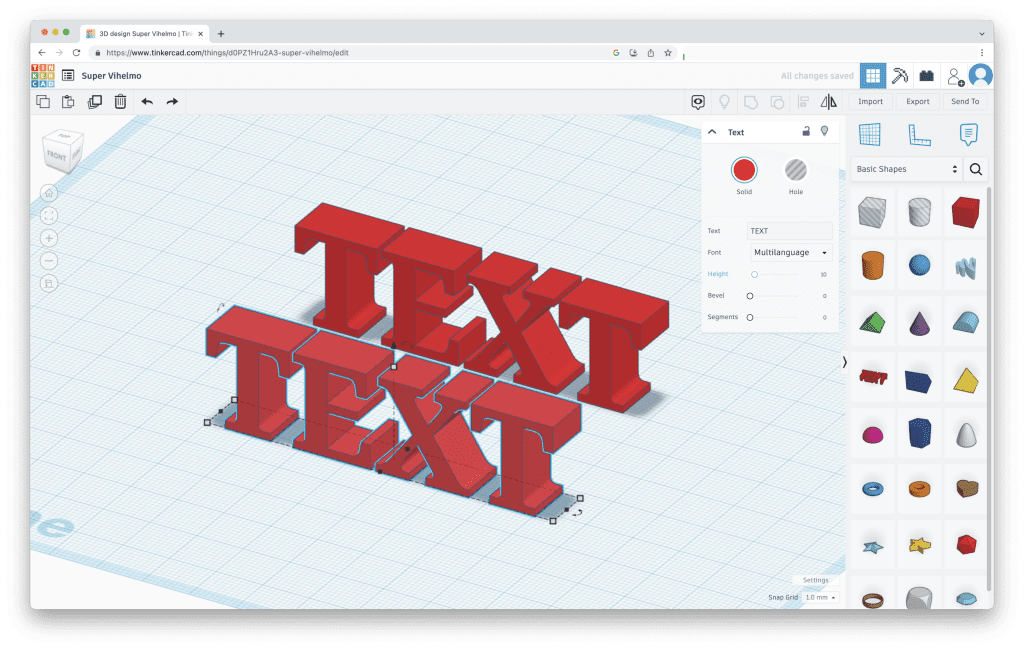
Select the text block, hold down Command and click the letter C on your keyboard. This will copy the block to your clipboard. To paste the copy, hold down Command and click V. Your workplane should now look something like this.
Screen shot 2022 11 20 at 10 46 48 pm 1 1

We can now manipulate the text. Navigate to the locks options panel and select one of the text blocks and change the text from “TEXT” to “M” and the other one from “TEXT” to H.

Make sure to select the proper font. For this project, we used a sans-serif font to match our brand. I’ll also increase the bevel, make the letters a bit wider, and reposition the letters on the workplane, so they are aligned with the base of the workplace.

Step 5: Rearrange the letters

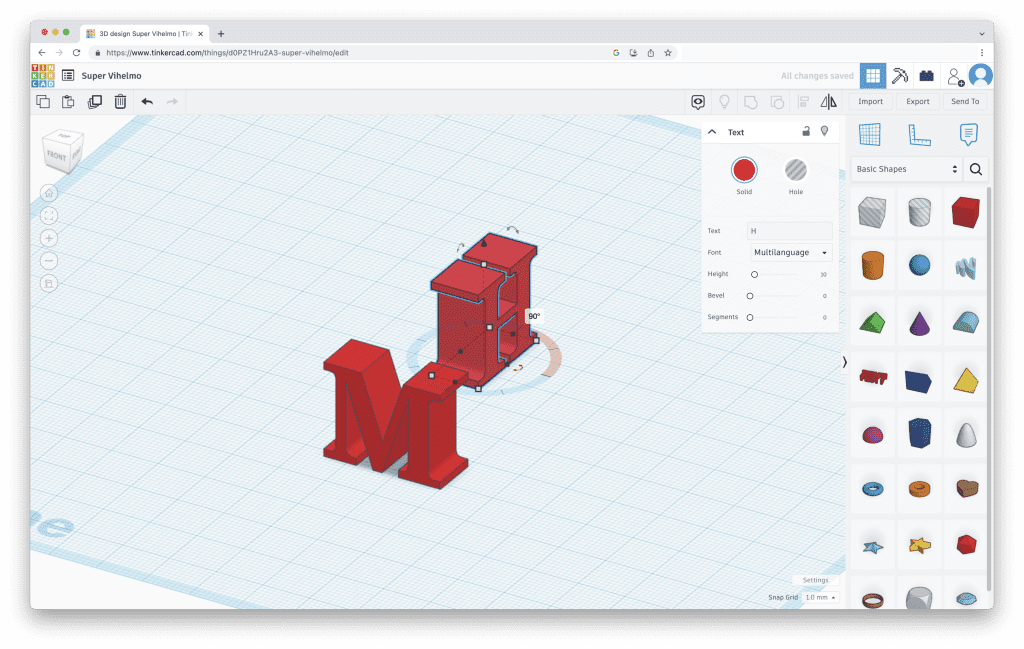
Next, select the H and rotate it so it’s perpendicular to the M. Don’t be afraid to adjust the letter’s height or width, and consider using the grids as a guide to snap your shape into place. For example, I used the guides to make both letters 40mm wide and 40mm tall to get that perfectly even, isometric look.
Screen shot 2022 11 20 at 10 48 56 pm 1 1

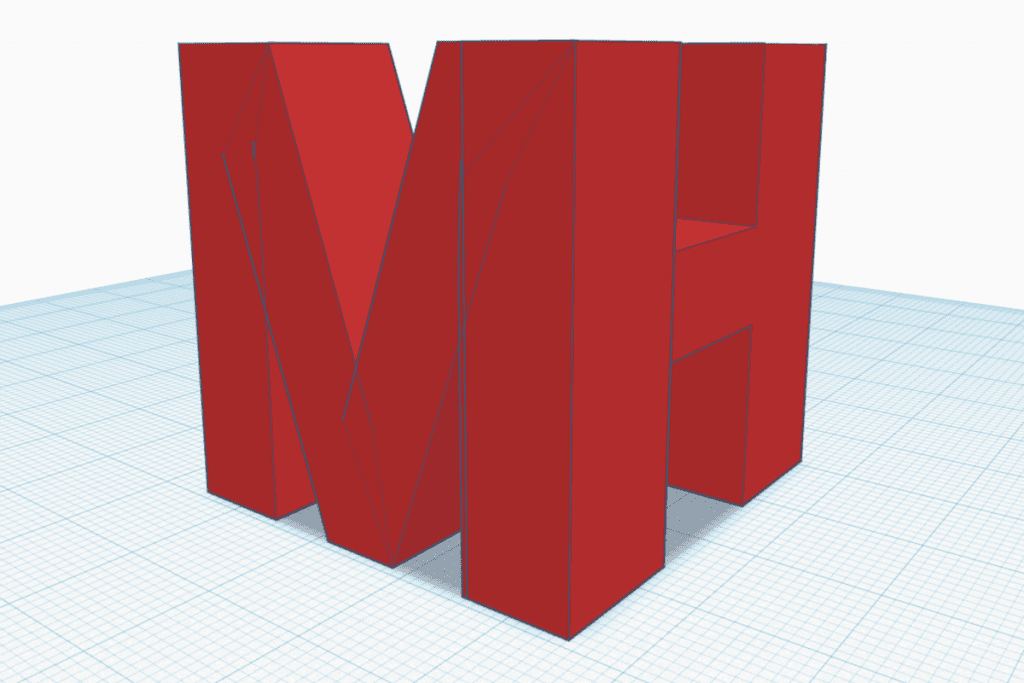
After moving the letters around a bit, you should get something similar to the image below. If now, just keep at it and let the snap guides help you.
Screen shot 2022 11 21 at 12 12 49 am

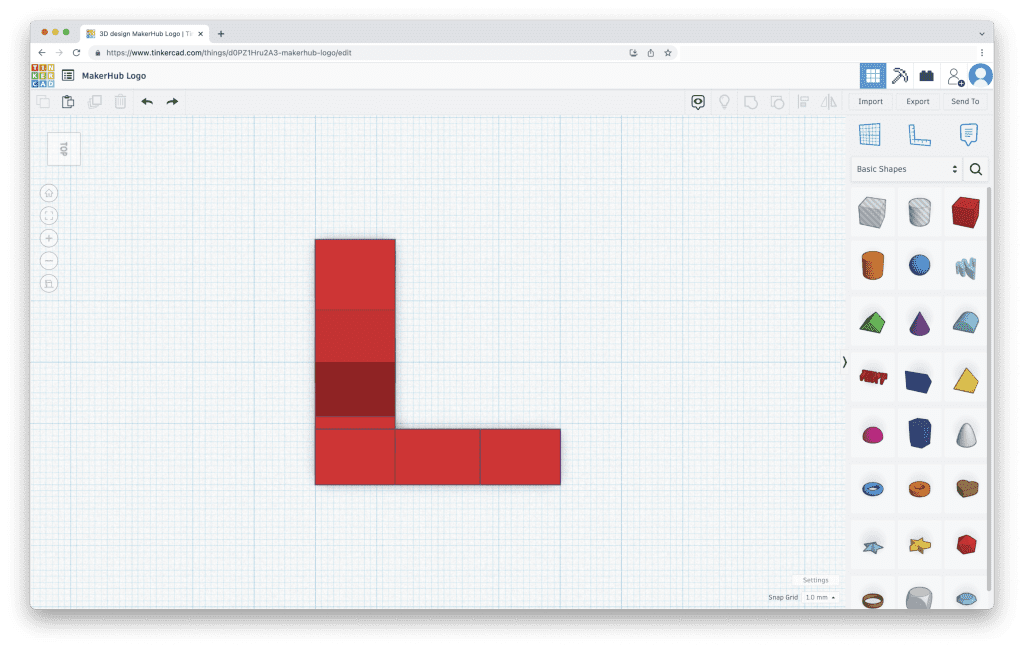
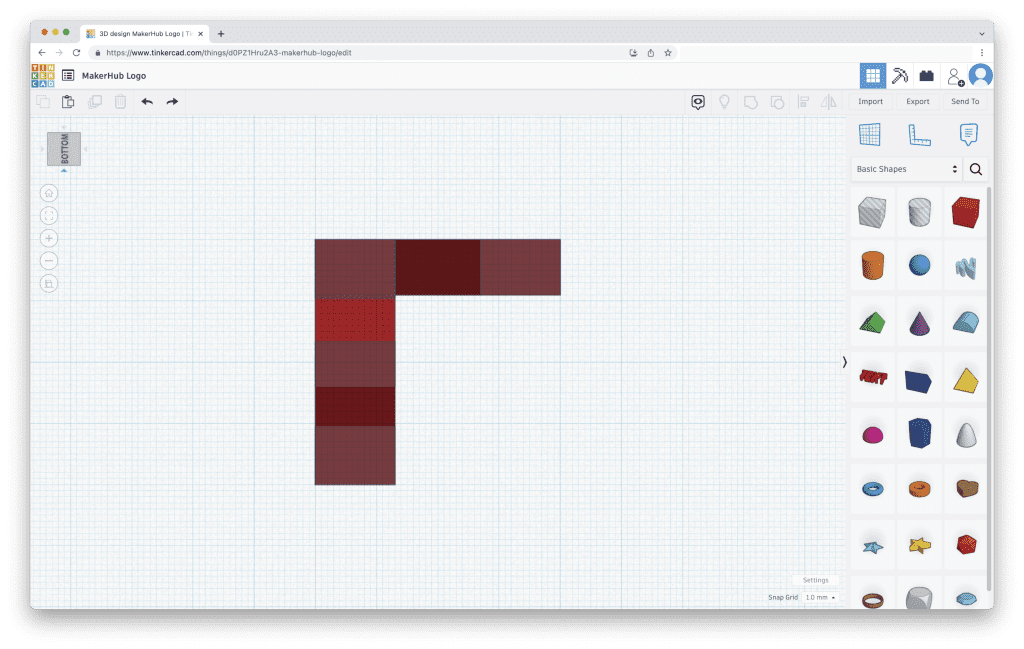
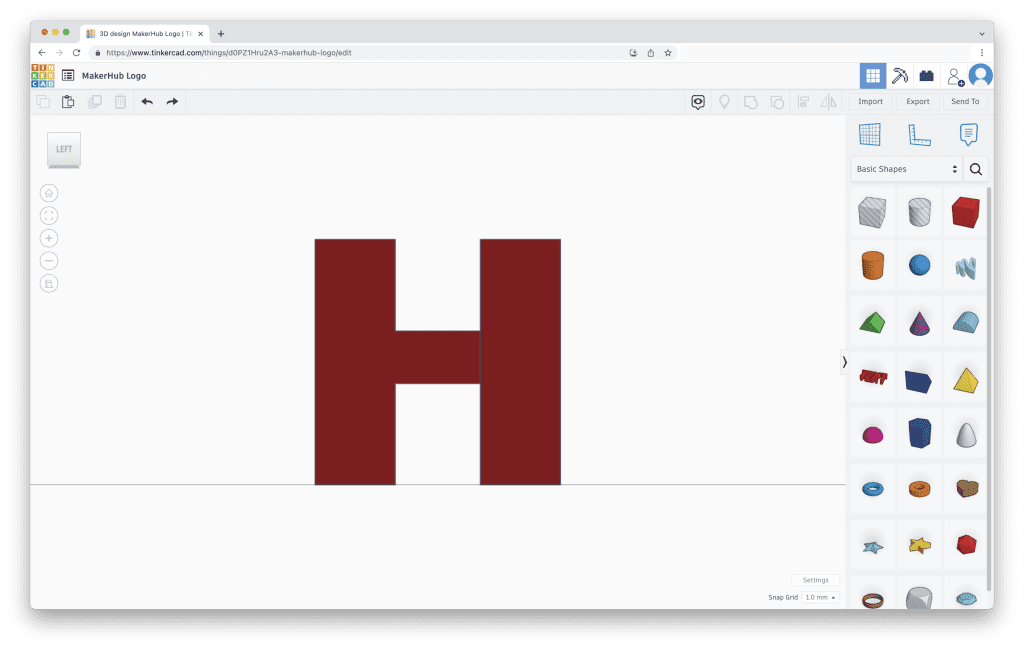
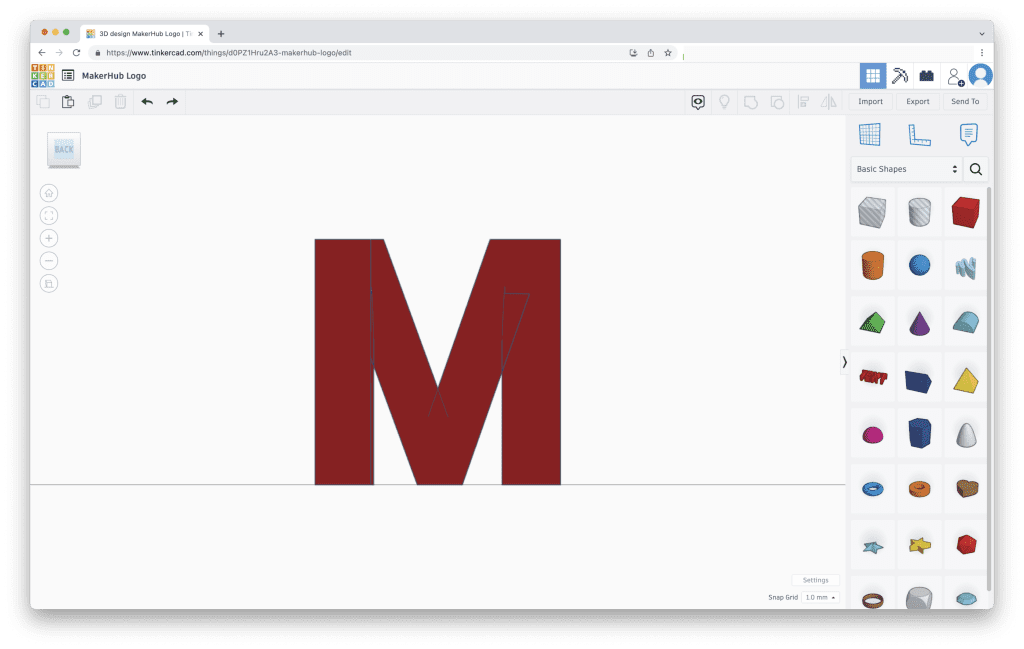
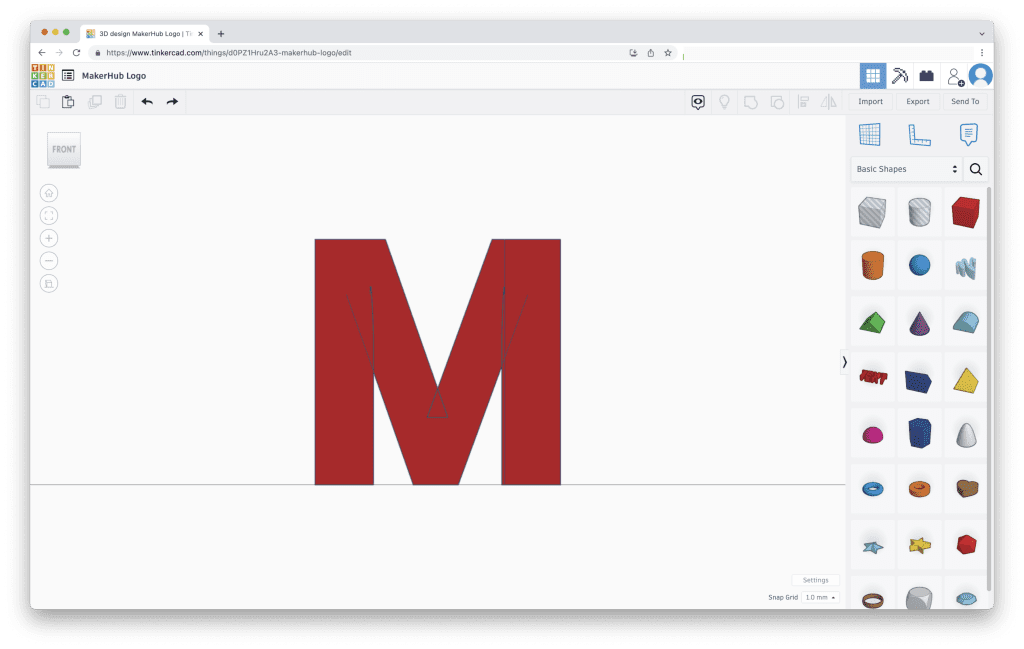
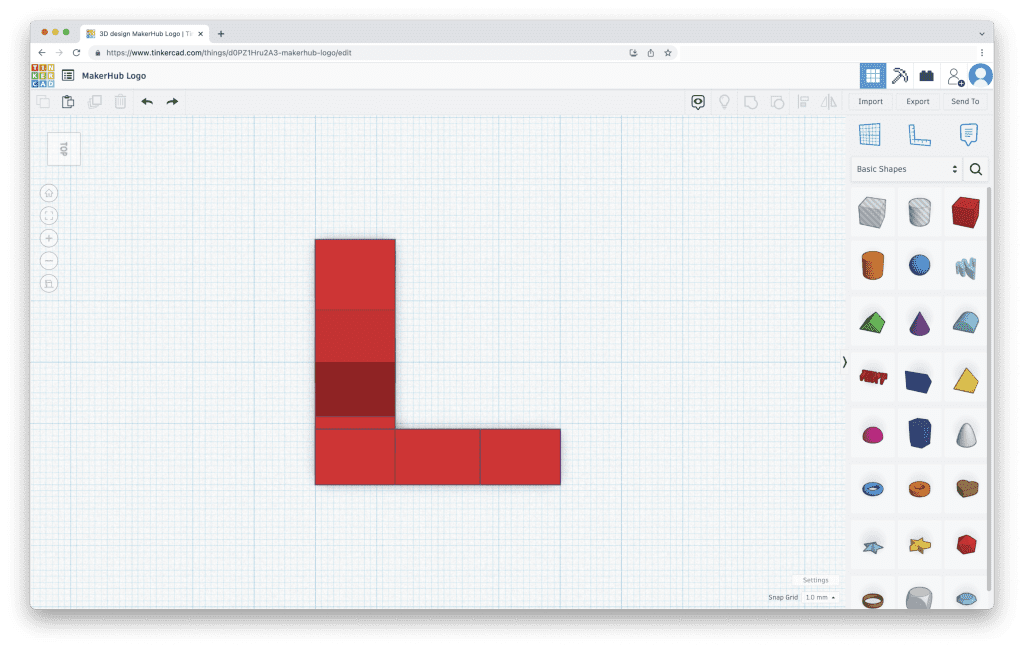
Below are some images of this shape from every angle. Notice how perfectly even and neat this looks. you might struggle to get the same results depending on what letters you’re working with, but don’t be afraid to make adjustments. Even if it does not result in the cleanest look on the computers, so long as it looks good when you print it, that’s all that matters.
Conclusion

And there you have it! Now you know how to create a beautiful 3D isometric logo for your business or yourself. If you enjoyed this 3D Design tutorial, look at our entire 3D module here on the MakerHub!

Leave a Comment

Frequently asked questions (FAQ)

LiaisonLabs is your local partner for SEO & digital marketing services in Mount Vernon, Washington. Here are some answers to the most frequently asked questions about our SEO services.

SEO (Search Engine Optimization) is the process of improving your website's visibility in search engines like Google. When potential customers in Mount Vernon or Skagit County search for your products or services, SEO helps your business appear at the top of search results. This drives more qualified traffic to your website—people who are actively looking for what you offer. For local businesses, effective SEO means more phone calls, more foot traffic, and more revenue without paying for every click like traditional advertising.

A local SEO partner understands the unique market dynamics of Skagit Valley and the Pacific Northwest. We know the seasonal patterns that affect local businesses, from tulip festival tourism to agricultural cycles. Local expertise means we understand which keywords your neighbors are searching, which directories matter for your industry, and how to position your business against local competitors. Plus, we're available for in-person meetings and truly invested in the success of our Mount Vernon business community.

SEO is a long-term investment, and most businesses begin seeing meaningful results within 3 to 6 months. Some quick wins—like optimizing your Google Business Profile or fixing technical issues—can show improvements within weeks. However, building sustainable rankings that drive consistent traffic takes time. The good news? Unlike paid advertising that stops the moment you stop paying, SEO results compound over time. The work we do today continues delivering value for months and years to come.

SEO pricing varies based on your goals, competition, and current website health. Local SEO packages for small businesses typically range from $500 to $2,500 per month, while more comprehensive campaigns for competitive industries may require a larger investment. We offer customized proposals based on a thorough audit of your website and competitive landscape. During your free consultation, we'll discuss your budget and create a strategy that delivers measurable ROI—because effective SEO should pay for itself through increased revenue.

Both aim to improve search visibility, but the focus differs significantly. Local SEO targets customers in a specific geographic area—like Mount Vernon, Burlington, Anacortes, or greater Skagit County. It emphasizes Google Business Profile optimization, local citations, reviews, and location-based keywords. Traditional SEO focuses on broader, often national rankings and prioritizes content marketing, backlink building, and technical optimization. Most Mount Vernon businesses benefit from a local-first strategy, though many of our clients combine both approaches to capture customers at every stage of their search journey.

Absolutely! SEO and paid advertising work best as complementary strategies. Google Ads deliver immediate visibility and are great for testing keywords and driving quick traffic. SEO builds sustainable, long-term visibility that doesn't require ongoing ad spend. Together, they create a powerful combination—ads capture immediate demand while SEO builds your organic presence over time. Many of our Mount Vernon clients find that strong SEO actually improves their ad performance by increasing Quality Scores and reducing cost-per-click, ultimately lowering their total marketing costs while increasing results.